Start with the Exact Copy to Be Shared
Choose the file that will actually be attached, submitted or published. A thumbnail, screenshot, exported photo and original camera file can have different sizes and metadata. Give the sharing copy a clear filename in your own folder and keep the original separately. The aim is to inspect that copy, not to infer its contents from an earlier version.
There are three separate tasks here: count file bytes, read selected image tags and decode QR text. None performs a complete privacy or security audit. Decide which question needs an answer before selecting a file. A size estimate cannot reveal a stored location, and an EXIF result cannot confirm email delivery.
Understand What Local Processing Means Here
The attachment tool takes the browser's reported File.size value for files selected in its control. It does not read their contents. The EXIF viewer reads the selected JPEG or TIFF locally. The QR image reader decodes pixels in the browser. These operations have no file-upload step in the current implementation; the tools do not send the selected file to a server for analysis.
That is a statement about these features, not a promise that every website using a file picker behaves the same way. A page can upload a selected file when its code does so. Page requests and host logs are separate from file processing. Consult the site's actual privacy information rather than interpreting the word local as a general guarantee.
Use Exact Bytes Before Rounded Sizes
A file manager may display a rounded size or an allocation figure. The size needed for attachment arithmetic is the file's content length in bytes, not space allocated on the disk. Selecting the file supplies that byte count directly. For manual entries, choose the matching unit: 1 MB is 1,000,000 bytes and 1 MiB is 1,048,576 bytes. French equivalents are Mo and Mio.
Enter each attachment once. Selected files and manual size lines are added together, so entering the same file through both routes doubles it. Put separate files on separate lines. The checker allows up to 100 attachments and rounds each manual converted size upward to a whole byte before estimating its encoded representation.
Account for Encoding per Attachment
An email representation can be larger than the original files. This calculator models Base64: each group of up to three input bytes becomes four characters. It then adds two bytes for each line of at most 76 characters, including the final represented line. Headers, body and other message structure belong in the separate overhead input; they are not discovered from the files.
A 57-byte attachment produces 76 characters and two line-ending bytes, giving 78. A 58-byte attachment produces 80 characters across two lines, giving 84. Three separate files of one, two and three bytes produce 18 encoded bytes in this model. A single six-byte file produces 10. Combining sizes before encoding would therefore lose per-file padding and line endings.
| Original bytes | Base64 characters | Line-ending bytes | Encoded total |
|---|---|---|---|
| 1 | 4 | 2 | 6 |
| 2 | 4 | 2 | 6 |
| 3 | 4 | 2 | 6 |
| 6 | 8 | 2 | 10 |
| 57 | 76 | 2 | 78 |
| 58 | 80 | 4 | 84 |
Compare the Right Provider Limit
A provider may limit total original attachments, the encoded message, a recipient account or a cloud-link workflow. Read the current wording for the actual account before entering a limit. The checker compares its estimated whole message with the entered message limit. Comparing that result with a raw-attachment rule can answer the wrong question, even when the numbers share the same displayed unit.
Use the original-byte total for a rule explicitly about original attachments. Use the estimated message total only for a compatible message-size rule and allowance. Equality with the entered limit does not trigger this calculator's over-limit result, but it does not establish acceptance. Account restrictions, blocked file types and recipient rules are outside this arithmetic, and no email is sent here.
Read Only the Supported EXIF Fields
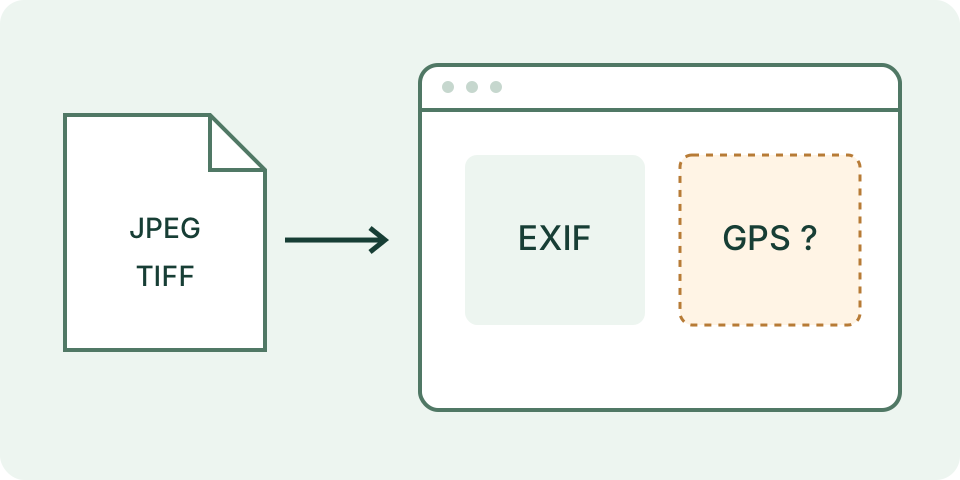
The viewer accepts JPEG and TIFF, with a maximum of 20 MiB, or 20,971,520 bytes. It checks a file signature before attempting the parser. Renaming a PNG to .jpg does not convert the image into JPEG. A supported signature is also not proof that every part of a file is valid; parsing can still fail.
The result contains selected readable fields such as camera make/model, dimensions, orientation, original date, exposure, aperture, ISO, focal length and copyright. It is not an inventory of every metadata block. A result with no selected tags means none of this set was found. Other tags, embedded previews or information visible in the image may remain.
Interpret Tags Without Inventing a Capture History
Stored tags can be missing, edited or inconsistent. A model name does not prove which camera captured the image. A copyright string is a stored statement, not a verified ownership record. Dimension tags may describe different parts of the file, and the displayed orientation value is stored metadata rather than an automatically rotated preview of the photo.
DateTimeOriginal is shown as stored. The selected fields do not establish its time zone or a unique UTC instant. Do not compare it with a computer's file-modified time as though both must describe the same event. Record the exact tag name and value when explaining a discrepancy; a surprising value alone does not authenticate or discredit the image.
Treat Stored GPS as a Separate Choice
GPS coordinates are hidden by default. Enable the stored-GPS option, then read the file again. Changing the option clears the current result so earlier coordinates are not mistaken for a new choice. The coordinates come from the file; they do not measure the device's present location. The viewer does not send them to a map service or load a remote map.
Displaying coordinates can expose a location when results are copied, photographed or shared. Clearing the page or hiding GPS does not remove tags from the original file. This viewer has no metadata-removal export. Use a separate appropriate editing workflow to create a sharing copy, then inspect that exact output again.
Verify the Exported Copy as a New File
An application's preview is not enough to establish what an exported attachment contains. Export the intended version, select that saved file and compare its size and supported tags with the original. Record the app, export choice and output filename. A smaller size can reflect compression, resizing or omitted content; it does not demonstrate that all metadata was removed.
Inspect visible content as well. Faces, addresses, screen notifications and a QR code can remain visible even when selected EXIF fields disappear. The viewer does not redact pixels or inspect PDF comments, Office revisions or archive members. A clean selected-tag result should be described narrowly, with the supported format and fields named.
Decode QR Text Before Acting on It
The QR file mode accepts JPEG, PNG and WebP up to 10 MiB. Its longest image edge is reduced to at most 2,048 pixels for decoding. Small code modules may disappear during that reduction. Crop a copy around the code while keeping its surrounding blank border and try the supported image again. A no-code result is not proof that the source contains no QR code.
Decoded text is displayed without automatically opening links. Read the full destination and context before using it. The output is limited to 4,096 Unicode characters and warns when truncated. A decoded URL, payment string or login message is data, not verification of the destination. Camera mode is optional and requires a secure context and browser permission; Stop releases the stream.
Plan the Transfer Separately
After choosing the final copy, use its current size to estimate upload duration. For example, 6 MB decimal at a constant 8 Mbps takes six seconds for the simple data transfer: 48 million bits divided by eight million bits per second. That estimate excludes connection setup, server processing and changing throughput. Use an observed upload rate rather than a download-plan speed.
An email attachment's original size and its encoded message estimate are different payloads. Choose the size relevant to the transfer being planned rather than assuming every app sends MIME Base64. Compression or export changes require a new size check. The timing tool estimates duration; it does not upload the file, reserve capacity or verify a deadline.
Keep a Concise Check Record
Save only what is useful for the task: which copy was checked, its byte size, supported format, chosen tool, relevant result and any limitation. For an attachment comparison, include the rule's account context and unit basis. For a tag discrepancy, record the exact field. Avoid distributing full metadata when one value answers the question.
Unsupported, too-large and failed states should remain visible in the record. They are not empty successful checks. Clear selected files and results when the work is finished; this changes the page state, not the files on disk. A support sample should reproduce the issue with unrelated private content removed through a separate editing step, followed by another check of the sample itself.