Write the Desktop You Need Before Choosing a Dock
A useful shopping requirement describes the finished desk. Write down the number of external screens, their exact resolutions and refresh rates, and whether each needs a separate workspace. Add the operating system, the storage and other USB devices, and whether charging through the dock is essential. A request for two monitors is incomplete when one person means two copies of a presentation and another means two independent desktops.
Consider an example: a laptop, one 2560 × 1440 monitor at 60 Hz, a keyboard, mouse and backup drive. The owner is happy to keep the original laptop charger connected. That requirement removes dock charging from the purchase decision. A more expensive high-power dock is not automatically necessary. Keep the requirement separate from the product list so extra sockets and ambitious marketing do not silently change the problem.
Build a Record for the Exact Host Port
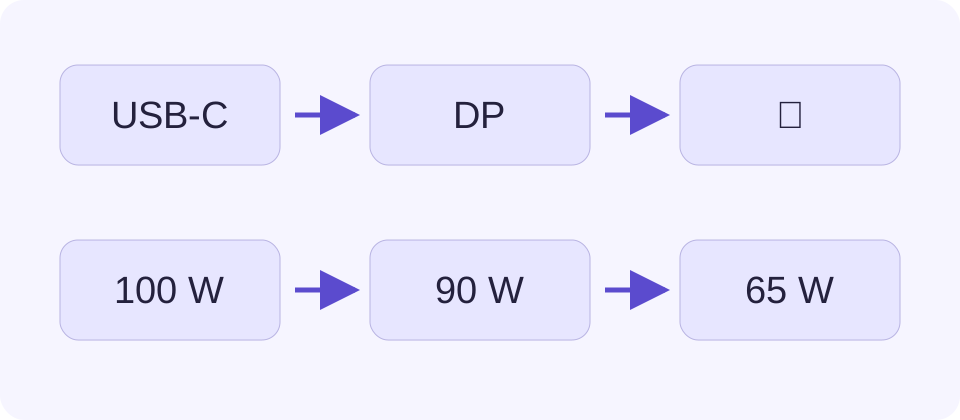
Find the full laptop model, configuration and operating system. Use the manufacturer’s manual for the actual USB-C port, rather than a review of a neighbouring model. Record whether that port provides DisplayPort Alt Mode, Thunderbolt, USB4, data alone or an unclear combination. Also record whether that same port accepts laptop charging. Two identical-looking sockets on one computer can serve different roles.
Keep the document link and the relevant specification beside each answer. A missing fact is a question for manufacturer support, not permission to choose the most capable option. The connector drawing on a retail page establishes physical fit only. A printed symbol can help locate a port, but it should not replace its documented functions. Check each laptop separately when a shared desk must serve two computers. One successful connection does not define the other host.
| Item | Record |
|---|---|
| Host | Exact model, port protocol and USB-C charging support |
| Displays | Total count, resolution, refresh rate and extend/duplicate mode |
| Dock | Exact revision, host requirement and display table |
| Cable | Exact model and documented data, video and power support |
| Power | Host-delivered watts with the specified supply |
Understand How the Dock Creates Video
Ask which display path the exact dock uses. Native video takes display output from the computer through a compatible DisplayPort or Thunderbolt connection. A DisplayLink product instead uses host software and compatible USB graphics hardware. Synaptics describes that driver-based arrangement explicitly. A plain USB data connection therefore cannot be treated as native DisplayPort video, while some software-based docks can use a data connection under their documented conditions.
The distinction changes what needs checking. A native-video purchase needs the matching host protocol and display limits. A software-based purchase needs supported operating-system versions, permitted driver installation and any required permissions, as well as suitability for the intended work. On a managed work computer, the owner may not be allowed to install that software. Do not replace the dock’s published requirement with a general claim that every USB-C or USB4 device supports every related dock.
Check the Complete Screen Arrangement
Read the host and dock display tables for the complete arrangement. Count the external monitors and note whether the built-in screen remains active. Match resolution, refresh rate and the intended operating system. Two physical HDMI outputs can repeat one image or depend on a host feature that the other computer lacks. A maximum printed beside one output does not establish the maximum available on every output at once.
Apple’s MacBook Pro documentation ties external-display limits to the exact model and screen modes. It also states that a supported hub does not raise the computer’s overall display limit. Use the equivalent exact specification for any other host. Bandwidth arithmetic helps explain a requested mode, but it does not discover the GPU’s stream limit, a dock’s internal routing or a missing compression feature. Treat those as separate documentary checks.
Choose the Host Cable as Its Own Component
The cable between the laptop and dock is the host cable. Start with the dock manufacturer’s supplied or specified cable. A cable connected to a monitor is a different part of the path, and the dock’s downstream USB-C ports may have different functions from its upstream connection. Trace each lead before buying a replacement. A charging-only product description does not establish high-speed data or video.
USB-IF treats power capability and data performance as separate cable markings. Apple’s cited cable comparison also shows why charging support does not establish video. Write down the exact replacement model, required protocol, power rating and useful length. Keep extension leads and adapters out of the first test unless the manufacturer requires them. A cable that succeeds at one lower display mode is not thereby certified for every higher mode, every dock or the full advertised data rate.
Compare Power at the Laptop, Not at the Wall Adapter
Find the power the dock documents as available to the laptop with the intended supply attached. Its adapter must also power the dock and connected accessories, so the adapter label is not the host output. Microsoft’s power-budget guidance explains this distinction. Some docks vary their allocation with connected loads. Read the conditions rather than assuming the largest number on the box reaches the laptop.
For a numerical comparison, a documented 90 W host output against a 65 W requirement gives 25 W of margin. A 60 W output against a 90 W requirement gives a 30 W shortfall. Neither calculation proves agreement on the necessary Power Delivery voltage and current or charging behaviour during heavy work. The laptop must accept charging through that port. Keeping its own charger may be a suitable documented alternative. Avoid connecting competing power sources unless the manufacturer allows the arrangement.
Reserve Capacity for the Devices You Actually Use
List the backup drive, webcam, network adapter, audio device and other peripherals that will share the dock. Check the data rate and function of each intended socket. A convenient socket count does not establish independent full-bandwidth links. Dock documentation may describe shared capacity or features that change when particular video outputs are active. Record those conditions alongside the list of devices.
A backup-time estimate should use an observed sustained transfer rate for a comparable workload, not the cable’s headline signalling rate. Small files, the drive and the host can dominate the result. Test the drive directly and through the dock with the same file set before attributing a difference to the cable. Protect the original data and use ordinary safe removal procedures; a diagnostic copy should not depend on moving the only copy of important files.
Bring Up One Function at a Time
After the documents establish a candidate setup, start with one display at a supported mode and the required host cable. Confirm its selected input and check whether the desktop is extending or duplicating. Then add the remaining screens. Connect USB devices individually and check charging separately. Note the exact point where behaviour changes. This produces a useful support report instead of a vague statement that the dock does not work.
For an intermittent failure, keep the host port, device, settings and task fixed, then substitute a known-good cable suited to that task. A successful substitute makes the original suspect; two failures leave the wider setup unresolved. Two successes mean the fault was not reproduced. Do not call any of these observations an electrical certification. Stop using a cable with exposed conductors, heat damage or a loose connector.
Save a Small Evidence Sheet Before Purchasing
Keep one line for the exact laptop, one for the dock and revision, one for the host cable, and one for the whole screen arrangement. Attach the applicable manufacturer links. Record any driver, firmware, supply, operating-system or lid-state condition. Mark every required but undocumented fact as pending. A buyer or support technician can then see which claim still needs an answer without repeating the entire investigation.
Compare candidates against that sheet instead of assigning a compatibility percentage. A documented limitation rules out the affected function. A missing statement leaves a question open. A fully documented path is a reason to test the setup, not proof that Savvy Toolkit has connected and verified those models. Preserve the working configuration after testing, including the cable identity. Replacing an unmarked lead later should trigger another check rather than inheriting a result from a different cable.