How to Use This Tool
- Enter the number of files and a representative average file size.
- Select the size unit carefully, then choose an extra allowance percentage.
- Compare the base total, added allowance and complete storage target.
Calculation Method
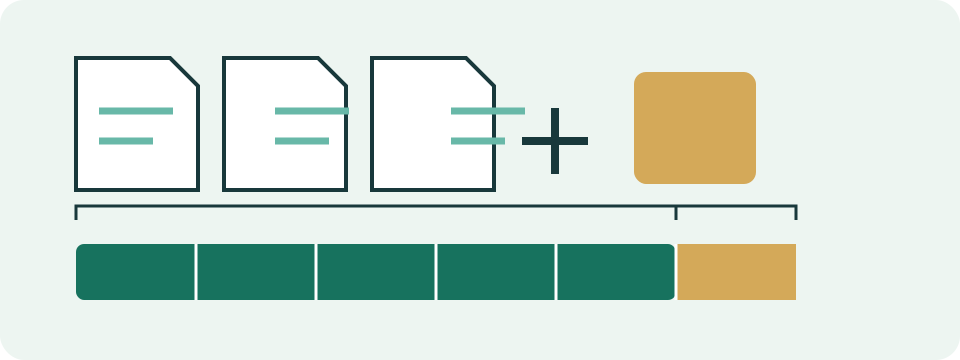
Base bytes = file count × average file bytes. Target = base bytes × (1 + allowance/100). A 20% allowance adds one fifth of the base. It does not mean 20% of the drive remains empty.
Worked Example
1,000 photos averaging 5 MB require 5,000 MB, or 5 GB in decimal units. A 20% extra allowance adds 1 GB, producing a 6 GB storage target.
Build an Average from the Files Being Planned
Select a representative sample of the collection rather than using a universal photo or document size. File format, settings and content can change the result. Add the sample sizes in the same unit and divide by the number of sampled files. Keep the sampling basis with the estimate so another person can understand what the average represents.
For example, a sample of 30 files totaling 180 MB has a mean size of 6 MB. A collection of 800 similar files would then have an estimated base size of 4,800 MB, or 4.8 GB. This is an independent planning example, not a claim that photos normally occupy six MB. A small or unrepresentative sample can produce a poor estimate.
Keep Unlike File Groups Separate
A collection containing documents, exported videos and source media can have very different size patterns. Calculate groups separately when a single average hides those differences. This tool handles one count and average per calculation; it does not automatically scan a folder or offer a multi-row inventory. Add group results outside the calculator after matching their units.
Using the previous hypothetical 4.8 GB group, add 24 video files averaging 750 MB: the second group contributes 18 GB. Their combined base is 22.8 GB. A common 25% allowance produces 28.5 GB. Avoid adding the same allowance to each group and then again to the final total unless the second addition represents a separate, explicitly named requirement.
State What the Allowance Is For
The extra percentage adds a share of the estimated file total. It can represent a chosen growth scenario or other uncertainty, but it is not a prediction of future files. The panel separates the base collection, added amount and target. Record why the allowance was chosen; an unexplained percentage makes later comparisons harder.
Suppose 1,200 files average 40 MB. The base is 48 GB. Adding 20% gives 57.6 GB. Keeping 20% of a destination empty instead requires at least 60 GB for that file total, before other needs: 48 divided by 0.8. Those are different operations. The calculator's extra allowance implements the first, not a rule that the entered percentage of the final drive stays empty.
Match the Size Measure to the Destination
File data size and allocated disk space can differ. Many small files can occupy an amount of storage that is not explained by summing their logical byte counts alone. An actual destination's allocation, compression or deduplication behavior can also matter. This calculator does not detect or simulate those features, so a precise total of source bytes does not guarantee identical destination use.
For a transfer or archive estimate, start with the size that operation will handle. For destination-capacity planning, check the relevant allocated or expected storage needs. A completed exported video or archive has its own size. Do not treat the source folder's sum as the exact final export size. Preserve MB versus MiB labels throughout the average and count calculation.
Include Copies and Working Space Deliberately
One full copy of the 28.5 GB planned collection needs that modeled amount. Two full copies need 57 GB across their destinations under the same assumptions. Creating two folders on one device does not by itself establish a separate-device backup. Backup reliability and restoration are different questions from adding byte requirements.
Versioned or incremental backups need their own retention assumptions. A count of today's files does not predict how many historical versions will remain. Temporary exports, application files and existing destination data are also outside the basic count-times-average formula unless included in the plan. List these needs separately rather than using one percentage to imply that every unspecified task has been covered.
Compare the Target with Available Capacity
Convert the planned target and destination report to the same unit before comparing them. The drive-capacity converter explains decimal and binary labels, but it does not read current free space. A destination's advertised total can already be partly occupied. Use its actual available-space report for a practical comparison, with any separate reserve stated clearly.
The form requires a whole, nonnegative file count and a nonnegative average size. Zero produces a zero base for that scenario; it does not prove a folder is empty. Refresh the sample after a change of format, recording settings or collection mix. Storage size also does not predict copy duration, so use the appropriate transfer tool with a separately justified rate.
What the Result Means
Sample several representative files. Photo format and settings affect sizes. Existing files, applications, filesystem allocation, compression and deduplication are included only when your inputs account for them.
Common Questions
Should I Use File Size or Size on Disk?
Use the size measure that matches the destination. Files copied to another filesystem can occupy different allocated space, especially when many files are small.
Does This Include Two Backup Copies?
No. Plan each copy separately or multiply the complete collection requirement by the number of full copies. Incremental backups need their own retention assumptions.