Identify the Dimensions Behind the Number
A resolution such as 1920 × 1080 counts columns and rows of pixels. It does not describe physical screen size, text size or refresh rate. Start with the display model and its native pixel dimensions from the manufacturer's specification. Record the active signal separately from system settings. A panel containing 3840 × 2160 physical pixels can receive a 1920 × 1080 signal without losing its physical pixels. The display or source then scales that signal. Entering the lower signal dimensions in a calculation of the panel's physical density would describe a different quantity. Use the PPI calculator with native dimensions and the actual active-screen diagonal for a panel-density comparison.
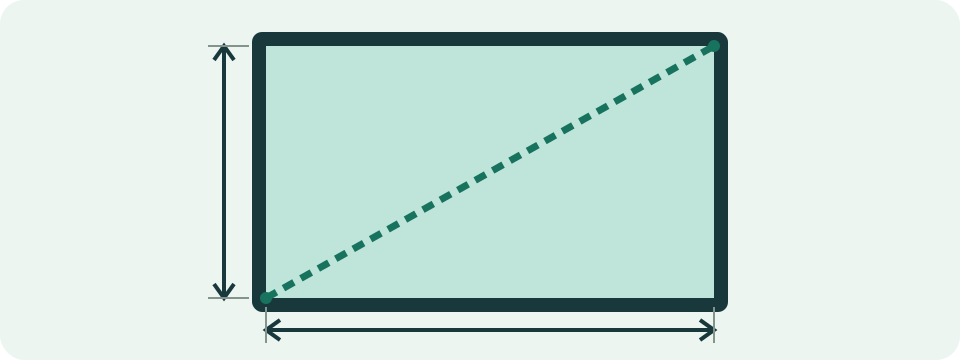
Choose the Active Diagonal Rather Than the Enclosure
The diagonal for PPI runs between opposite corners of the active image area. It excludes the bezel, stand and surrounding enclosure. Use the specified active diagonal in inches; a centimetre value converts to inches by division by 2.54. A product family name or rounded size category can differ from the documented diagonal. Record the source of the size when comparing close results. The teaching diagram shows the active rectangle and its diagonal, not a scale drawing of a particular monitor. The calculator does not read your display model or measure the glass through the browser. Width and height in the form are pixel counts, not physical dimensions in centimetres.
Calculate Density and Physical Dimensions Together
PPI means pixels per inch along the physical panel. For a rectangular grid with the supplied dimensions, calculate the pixel diagonal as the square root of width squared plus height squared. Divide that diagonal by the screen diagonal in inches. A 1920 × 1080 panel has a pixel diagonal of about 2202.91 pixels. Dividing by 24 gives about 91.79 PPI; dividing by 27 gives about 81.59 PPI. The same pixel count spread over a larger panel has lower density. The tool also calculates active physical width and height by dividing each pixel dimension by PPI, and reports centimetre equivalents. These geometric results depend on accurate inputs and do not measure a manufactured panel's tolerances.
Compare Density Without Turning It Into a Quality Score
A 3840 × 2160 panel at 27 inches gives about 163.18 PPI. Its density is twice that of a 1920 × 1080 panel at the same diagonal, because both axes doubled. The pixel count rises from 2,073,600 to 8,294,400, which is four times as many pixels. Both rectangles remain 16:9. Density alone does not describe contrast, colour accuracy, motion handling, application rendering or the quality of a scaled image. Avoid treating one PPI threshold as a universal purchase recommendation. The table supports a size-and-resolution comparison; it does not rank monitors or predict exactly how every person's text will look under different settings.
| Native pixels | Diagonal (in) | PPI | Pixels |
|---|---|---|---|
| 1920 × 1080 | 24 | 91.79 | 2073600 |
| 1920 × 1080 | 27 | 81.59 | 2073600 |
| 3840 × 2160 | 27 | 163.18 | 8294400 |
Separate Desktop Scaling from a Lower Input Resolution
Display scaling changes the size of interface elements in a logical coordinate system. Lowering the signal resolution changes the image grid sent to the display. These operations can produce similar-looking large text through different paths. In a simplified direct-scaling example, a 3840 × 2160 desktop at 150% corresponds to 2560 × 1440 logical units; at 200% it corresponds to 1920 × 1080. The panel still has its native physical pixels. Dividing each axis by 1.5 reduces the logical area to four ninths of the original, not two thirds. Applications, operating systems and resampling can behave differently, so these arithmetic examples are not a promised reading from a system settings panel.
| Scale | Logical width × height | Logical area |
|---|---|---|
| 100% | 3840 × 2160 | 8294400 |
| 150% | 2560 × 1440 | 3686400 |
| 200% | 1920 × 1080 | 2073600 |
Use the Recommended Mode as a Documented Starting Point
In Windows display settings, select the intended screen before checking scale and resolution. Microsoft's guidance uses the recommended settings as a starting point and explains that a lower-than-native resolution can make text less sharp or create stretching and borders. On macOS, select the relevant display in Displays settings and compare the offered resolutions or scaling choices. Apple notes that some scaled options can affect performance. Record the original choice before changing it. Follow the current instructions for the operating system and monitor rather than assuming the same menu names on every version. A supported setting can improve one symptom without proving that another application or external display will behave identically.
Keep Browser Pixels Separate from a Physical Ruler
CSS pixels are layout units used by websites. The fixed relationship of 96 CSS pixels to a CSS inch does not guarantee that a drawn inch occupies one physical inch on every screen. The browser's devicePixelRatio relates device pixels to CSS pixels for its current environment. It cannot supply the physical diagonal needed for a PPI calculation. Page zoom can change that ratio, while pinch zoom has a different effect and does not change it in the same way. Moving a window between screens can also change the reported ratio. Record browser zoom during text comparisons. Do not treat a screenshot's dimensions or a CSS-sized rectangle as an automatically calibrated measurement of the panel.
Narrow Blurry Text by Its Scope
Note whether the problem appears in one application, throughout the desktop, on an external screen or after moving a window between displays. These observations lead to different checks. One older application may handle scaling differently from the rest of the desktop. An external display adds its signal mode, adapter and connection to the comparison. The blurry-text checker collects these observations along with the selected resolution and scaling status; its results are suggested checks, not an automatic scan. Keep an unknown setting marked unknown until it has been read. Native resolution is useful evidence but does not guarantee that every font, image or application's rendering path is sharp.
Change One Condition and Repeat the Same Text Sample
Choose a short piece of text that reproduces the problem at a fixed application zoom. Record the screen, active resolution, scaling, browser or application zoom, and the point where the window was placed. Change one supported setting, examine the same sample and then restore the original setting for another comparison. Enlarging a screenshot to inspect it introduces another scaling step, so a magnified capture is not identical to direct observation. Avoid changing font settings, resolution, zoom and cable together. A repeated improvement is useful evidence for the next check; it is not a measurement of physical pixels or proof that the whole display is fault-free.
Distinguish Image Dimensions from the Display Grid
A photograph's megapixel count is its width times height divided by one million. A 4000 × 3000 image therefore contains 12 MP and has a 4:3 ratio. It does not become a 16:9 image simply because it is displayed on a 16:9 monitor. Fitting the whole photo can leave unused space; filling the screen can crop it; stretching changes proportions. The megapixel and aspect-ratio tools can check those numbers before preparing an image. They do not reconstruct detail absent from the source. A file's byte size also depends on encoding and compression, so pixel count alone cannot predict an attachment's exact size or a download duration.
Check Refresh and Connection Requirements Separately
Resolution counts pixels; refresh rate counts updates per second. A density calculation cannot establish the active refresh rate or the capabilities of a cable, adapter, port and display combination. The HDMI and DisplayPort calculator estimates an active-image data requirement using the supplied dimensions, refresh rate and bits per pixel against an explicit useful budget. It does not certify a complete transport mode or automatic compatibility. Read the model-specific supported modes and the actual signal settings before attributing blur to bandwidth. Keep a support record with the native panel specification, active signal, scaling, application version, observed scope and the repeated change. That record makes the distinction between geometry and the failing display path clear.