How to Use This Tool
- Set the BPM for the pulse you want to count.
- Choose the number of beats per bar; the first click is accented automatically.
- Start at a low device volume, then stop before changing the audio output.
Calculation Method
BPM describes how many clicks occur in a minute when one click represents one beat. Decide what the click should stand for before starting. A passage marked with a quarter-note tempo can be practised with one click per quarter note. Counting two notes between clicks does not automatically double the number shown in the BPM field.
Worked Example
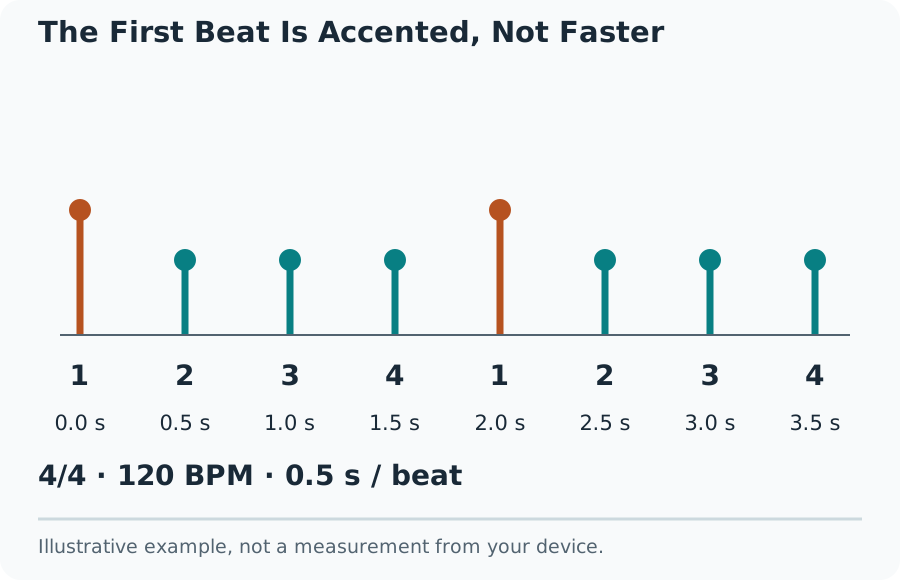
At 120 BPM, the interval is 60 ÷ 120 = 0.5 seconds per beat. Four beats take 2 seconds, so 30 four-beat bars fit into a minute. At 90 BPM, each beat lasts about 0.667 seconds and a three-beat bar lasts 2 seconds. A bar’s duration depends on both the BPM and the number of counted beats.
Use the Accent Without Changing Tempo
The accent marks the beginning of a group of beats. Four beats per bar at 120 BPM still gives two beats each second. The stronger first click helps you hear where a new bar begins; it does not add a fifth beat or create a pause. For three-beat practice, count one, two, three and let the next accented click begin the following bar.
The First Beat Is Accented, Not Faster
Check the Timing Arithmetic
The beats-per-bar control describes click grouping, not a full score notation system. Six clicks can represent six counted subdivisions, while some compound-meter practice uses two larger pulses. State which pulse you are following when comparing tempo markings.
Practise a Difficult Passage
Choose a speed at which the whole short passage stays controlled. Repeat a small section with the same fingering or movement, then raise the tempo in modest steps between attempts. A useful record names the passage, BPM and number of clean repetitions. A faster number with missed notes is a different result, not evidence that the same task improved.
Count one bar before beginning. Keep counting through rests so the next note lands in the intended place. For a recording with a known tempo, compare a few phrases rather than aligning a single click. Gradual drift can mean a different tempo or a performance that does not follow a fixed grid.
Troubleshoot Missing or Interrupted Sound
Start audio with the page’s button. Browser autoplay rules can prevent sound before a user gesture. Check the selected device, tab mute and system volume when the beat indicator moves without audible clicks. A Bluetooth route can delay what you hear relative to the visual indicator, so use a wired output for comparisons that depend on alignment.
What the Result Means
The metronome schedules sound in the browser, but it does not measure the sound leaving your speakers. Device buffering, output latency, suspended tabs and power-saving modes can affect playback. Keep the page active during practice. This is a practice reference, not a calibrated test of an instrument, audio interface or musician’s timing.
Common Questions
Can the First-Beat Accent Be Turned Off?
The current tool accents the first click of each selected group. Set beats per bar to match the grouping you want. It does not offer a separate accent toggle or a complete music-notation editor.
Will the Metronome Keep Playing in a Hidden Tab?
No. The tool stops sound when the page becomes hidden. Keep the tab visible during practice and start again after returning. The visible beat indicator is not a measurement of speaker output timing.