How to Use This Tool
- Start with the paired devices close together and a clear path. Repeat one simple task; for headphones, use audio stored on the source device.
- Compare a second position while keeping the task and devices unchanged. Note distance, intervening obstacles and orientation.
- Return to the starting position and repeat. Select the behaviour you actually observed, including an uncertain result.
Calculation Method
This guided check uses your observations to suggest comparisons of distance, placement and surroundings. Bluetooth range depends on the radio mode, transmitter, receiver, antennas and path. No fixed distance is assigned to a version, and no fixed reduction is assigned to each wall.
Worked Example
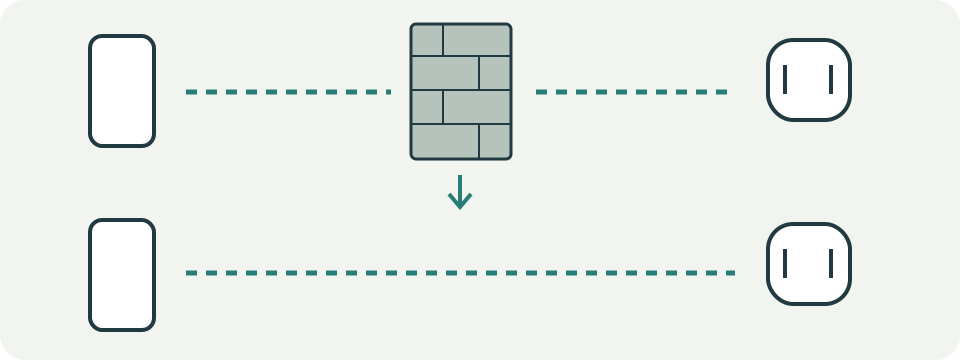
Audio remains steady across a clear 5 m path but cuts out across a 5 m path with a wall. Repeating both positions supports a placement-related pattern. It does not establish the accessory’s maximum range or identify a faulty component.
Record the Four Observations the Checker Actually Uses
The form asks whether the pair works nearby, whether an obstacle interrupts the path, whether moving the setup changed the result and whether one pair or several pairs have the problem. Select unknown when the comparison has not been made. The resulting cards suggest checks tied to those observations. They do not calculate metres, inspect radio power, pair a device or scan the operating system. A Bluetooth version number is not enough to predict the usable distance between two particular products in a particular room.
Establish a Nearby Baseline
Charge or power both devices and use a familiar task with the devices close together. For audio, play a saved file so a changing internet stream does not become an extra variable. For a keyboard or mouse, repeat the same short input sequence. Record whether the task starts, remains connected and responds consistently. Failure at this baseline sends the checker toward basic connection checks rather than a distance claim. Follow the exact maker's pairing instructions and confirm the intended output device before testing a longer path.
Repeat the Same Path Before Judging Range
Keep the source, receiver, task and device orientation consistent. Move in small repeatable steps and note the first reproducible interruption, then return to the baseline position. Repeat the route in both directions. A single successful moment at a distant point does not establish reliable working range. A pocket, body position, metal cabinet or a moved receiver can change the path even when the measured distance stays similar. The checklist has no automatic distance sensor. Any recorded distance comes from the user's own observation, not a browser measurement.
Use an Obstacle Comparison Without Promising a Wall Allowance
Compare a clear path with the actual obstructed position while keeping the rest of the setup fixed. The obstacle card is a reason to try placement, not evidence that a specific wall caused the fault. Materials and surrounding paths differ, and the devices' antennas are not identical. Avoid rules such as subtracting a fixed number of metres per wall. The free-space calculator can explain ideal distance loss, but it cannot turn a room description into a reliable Bluetooth range estimate or include the devices' implementation details.
Separate Placement from Pairing and Software
An improvement after moving a receiver or adapter makes placement worth investigating. Keep the previous position in the record so the comparison can be repeated. For a USB Bluetooth adapter, use the manufacturer's guidance about positioning and nearby hardware; do not apply another product's driver-removal instructions. For a laptop, phone or built-in receiver, confirm current software from the device maker. Change one item and repeat the same task. Restarting, updating, moving the receiver and repairing the pair all together makes it impossible to identify which change mattered.
Compare One Pair with Another Carefully
When one pair fails and another works, compare the exact tasks and supported connection modes before calling either product defective. A headset, keyboard and speaker do not exercise an identical path or profile. The pair card suggests confirming compatibility, reconnecting according to the maker and trying a known working peer when available. Several affected pairs make shared placement, interference or host configuration useful checks, but still do not prove the host is faulty. Keep model names and software versions in a private support record rather than uploading unnecessary device identifiers.
Distinguish Interruption from a Steady Delay
Audio gaps, reconnects and missing input are different from a stable offset between picture and sound. A steady offset may remain while the radio link is delivering audio consistently. Compare a local file and the same playback application before treating that symptom as a range problem. The checker measures neither codec delay nor total input latency. Moving closer is a comparison, not a universal cure. Describe the symptom precisely: one-second pause, disconnected device, repeated key, missing sound or constant audiovisual offset provides a more useful support report than bad Bluetooth.
Interpret the Cards as a Test Order
Nearby failure adds baseline checks, a reported blockage adds obstacle checks, improved placement adds placement checks, and one affected pair adds pair-specific checks. Unknown answers retain an observation card rather than invented certainty. Multiple cards can appear because more than one comparison is useful. Bluetooth range depends on the complete link and environment, so neither a version label nor a universal ten-metre rule certifies this pair. Stop after a repeatable improvement, document what changed and restore any unsuccessful changes. Persistent faults should go to the product's support process with the controlled record.
What the Result Means
Interference, software, the audio source and changing conditions can affect the comparison. A successful trial proves only that task worked under those conditions. Persistent problems nearby need the device maker’s connection checks.
Common Questions
Does a Bluetooth Version Guarantee a Distance?
No. Devices sharing a version can use different radio features and antenna designs.
Does a Dropout Prove the Signal Is Too Weak?
No. Check the repeatable pattern and the manufacturer’s guidance before drawing that conclusion.