How to Use This Tool
- Record the display mode, color preset and any active night-color or HDR setting.
- Open the static reference, optionally in fullscreen, and change one supported setting at a time.
- Keep the same lighting and viewing position. Use Stop or Escape to return to the controls.
Calculation Method
Color temperature describes a white-point characteristic, not brightness. Lower-kelvin presets generally appear warmer than higher-kelvin presets. Browser white and gray are requested color values; the display, color management and software can alter their appearance.
Worked Example
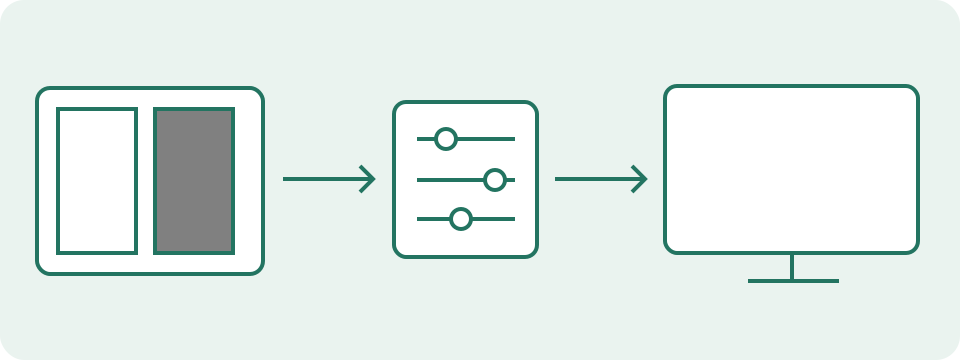
A display's 5000 K preset usually looks warmer than its 6500 K preset. Those are setting labels, not temperatures measured by this page. A visual preference does not establish calibration accuracy.
Use the Reference to Compare Settings, Not to Measure Kelvin
This page displays known white, gray, red, green and blue code values. It does not observe the light emitted by the panel, so it cannot measure its colour temperature in kelvin. Start opens the reference area; no camera or microphone permission is requested. A white patch that looks warmer after one setting change is a useful relative observation. It is not an optical measurement of the new white point. Even two adjacent patches pass through the same display and software path. A simulated neutral patch therefore cannot serve as an independent calibrated white source for the screen displaying it.
Record the Settings from Their Actual Controls
The optional display-mode, preset and source-note fields accept text entered by you. Night-filter and HDR selectors record On, Off or Unknown. They do not read the operating system or switch those features. Check the actual system or monitor controls before choosing a value, and keep Unknown when the state cannot be confirmed. Each text field is limited to 160 characters, enough for a short comparison note rather than a full equipment report. Note the display being viewed when several monitors are connected. A preset name such as Warm or Standard identifies a manufacturer's setting; it is not a verified colour-temperature result.
Read the Code Values Behind the Static Patches
White uses #ffffff, with red, green and blue channels all set to 255 in eight-bit notation. Gray uses #808080, with all three channels at 128. The primary patches set one channel to 255 and the other two to zero. The table lists those exact code values, not measured brightness or emitted spectra. Dividing 128 by 255 gives approximately 0.50196, but that fraction does not make the gray patch 50% of the white patch's physical luminance. Encoding, colour management and the display's response intervene. Equal channel numbers alone do not certify a neutral physical output on an uncalibrated screen.
| Patch | Hex | Red | Green | Blue |
|---|---|---|---|---|
| White | #ffffff | 255 | 255 | 255 |
| Gray | #808080 | 128 | 128 | 128 |
| Red | #ff0000 | 255 | 0 | 0 |
| Green | #00ff00 | 0 | 255 | 0 |
| Blue | #0000ff | 0 | 0 | 255 |
Keep Lighting and Position Fixed During One Change
Use the same reference area, viewing position and room lighting for each comparison. Record the original preset before changing one supported setting in the monitor or operating system. Compare white and gray as well as the saturated patches. A visible change across the whole reference can support checking that setting, but it does not isolate the panel from every software transformation. Ambient light and viewing angle also affect the observation. This page has no brightness meter, gamut measurement, colour-profile reader or automatic recommendation. Avoid adjusting several RGB controls together and then trying to assign the change to a single cause.
Choose a White-Point Target from the Actual Work
A lower colour-temperature setting is commonly described as warmer and a higher one as cooler, but the preset label does not guarantee a measured value. A production or delivery specification can call for a particular white point; matching that task requires its documented method and, for calibration, an appropriate measuring instrument. This visual reference does not certify D65, print matching, HDR performance or a colour-difference score. Do not select a universal target solely because a web patch looks pleasing. For casual comparison, keep the existing task and source content in view and retain the original setting for an easy return.
Handle Fullscreen and Restore the Controls
Fullscreen is available only after starting the pattern and can be unsupported or rejected by the browser. The page-area reference remains usable, with that coverage limit noted. Hide controls removes the overlay; click or tap the area, or press Space while it is focused, to show controls again. Stop or Escape ends the pattern and restores the controls. Hiding the tab or leaving fullscreen also stops this session. These controls do not change hardware settings. Stop leaves the entered notes in the current page; leaving the page does not create a saved report. Copy a useful comparison into your own record manually.
Choose the Next Check from the Observation
A small mark at one fixed physical location deserves the separate solid-field test, not an automatic colour-temperature diagnosis. Blurry text calls for native-resolution and scaling checks. A tint seen only in one application calls for comparing that application's rendering path with the same source, without treating the comparison as calibration. The reference remains local and does not upload notes or request a photograph of the screen. Its output is a pattern for your observation, not a pass/fail certificate. A concise record of source, preset, confirmed filter states and the observed change is more useful than an invented kelvin number.
What the Result Means
Room lighting, visual adaptation, display modes and browser or system color handling affect comparisons. An on-screen swatch cannot serve as an independent calibrated reference. Actual white-point measurement needs suitable measurement equipment.
Common Questions
Is 6500 K Always the Correct Setting?
It is a common reference for general screen work. The target depends on the workflow, and a preset name does not certify its output.
Why Can Two Screens Look Different on This Page?
Their profiles, modes and physical output can differ. Compare documented settings; this page cannot assign an accurate kelvin value to either screen.