How to Use This Tool
- Inspect the screen surface for dust and follow its manufacturer's cleaning guidance.
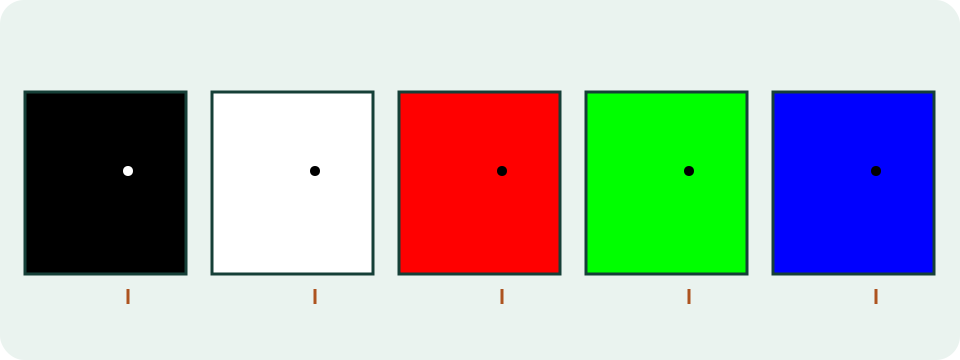
- Choose black, white, red, green or blue. Use fullscreen when supported and inspect the same position across fields.
- Keep each color still until finished. Use Stop or Escape to leave the pattern.
Calculation Method
The test requests uniform HTML color fields. Different backgrounds can make a persistent point easier to notice. The observation comes from your inspection of the actual panel, not from browser analysis of the screen.
Worked Example
A dark point appears at the same position on white and colored fields but blends into black. Record the position and compare with the display's own diagnostic instructions. Dust or surface damage can resemble a pixel issue.
Use Each Field as a Separate Observation
Start the pattern, enter full screen, hide the controls and inspect black, white, red, green and blue one at a time. A point that stays dark on white may behave differently on a single-colour field. A point that remains bright on black is a different observation. Record the field, position and appearance instead of naming the fault immediately.
The tool changes the page background only. It does not read pixels from the panel, photograph the screen or count defects. Keep each field stable long enough to inspect the centre, edges and corners. Rapid flashing is deliberately excluded.
| Field | Useful observation |
|---|---|
| Black #000000 | Bright or coloured point; glow and reflections may also be visible |
| White #ffffff | Dark point, dust or a small surface mark |
| Red #ff0000 | Uneven red response or a dark point |
| Green #00ff00 | Uneven green response or a dark point |
| Blue #0000ff | Uneven blue response or a dark point |
Clean the Surface Before Deciding
Turn the display off and follow its maker's cleaning instructions. A speck on the outer surface usually moves relative to the image when the viewing angle changes, while a pixel-related point stays aligned with the same screen location. That comparison is useful evidence, but it is not a guaranteed diagnosis.
Do not press, rub, heat or tap the panel. Pressure can damage layers, spread an existing mark or create a new one. A screenshot cannot capture a physical panel defect. A phone photo can document the location, but focus, moiré, reflections and camera processing can change its appearance.
Check Scaling and the Full Signal Path
Browser CSS pixels are not a promise of one physical panel pixel. Operating-system scaling, browser zoom, remote desktop, casting, video processing and non-native resolution can resample the field. Use 100% browser zoom and the display's native resolution when practical, then repeat through a direct connection when an adapter, dock or receiver is involved.
A mark that appears only in one app or only in captured screenshots points toward rendered content rather than a fixed panel location. A point that stays at the same physical place across apps, inputs and five fields is stronger panel evidence. The tool still cannot determine the underlying electrical or manufacturing cause.
Record Evidence for Support
Note the device model, native resolution, input, field colour, approximate position and date. Repeat once after reconnecting the display and once with another source or input when available. For a new screen, keep the packaging until the return window and pixel policy are understood.
Policies vary by model, region, warranty class, pixel type and defect count. Do not rely on a universal number of acceptable pixels. Use the exact policy and warranty document for the purchased model, then share a clear photo only when support requests it.
What This Test Cannot Prove
A browser pattern cannot distinguish a dead pixel, stuck subpixel, dust under a layer, pressure damage or a signal-path fault with certainty. It does not repair pixels and it does not validate a return claim. The result is a reproducible observation to take to the manufacturer, retailer or repair service.
OLED, LCD and other panel technologies can show different behaviour. Temporary image retention, uniformity, backlight glow and reflections cover areas rather than one fixed point. Treat those as separate checks instead of counting them as pixels.
Repeat the Observation Without Changing Everything
Use the same five-field order on the first and second pass. On the second pass, change one relevant condition only, such as the input or source device. A point that follows a screenshot or application belongs to the rendered content. A point that stays at one physical screen coordinate across independent sources gives support a more useful record.
Allow the display to reach normal operating temperature, but do not run an artificial burn-in routine. Note temporary behaviour separately from a point that remains after an ordinary restart. For an OLED screen, consult the maker before running a maintenance cycle; this page does not trigger one.
Avoid Common Counting Mistakes
Do not count a cluster from a zoomed phone photo without checking it by eye. Camera demosaicing can turn one bright point into several coloured samples. Do not count a reflection that shifts with your head, a cursor, browser focus outline or the border of the hidden control layer.
Count only observations you can relocate on multiple fields. Describe a coordinate relative to a corner or measure an approximate distance from the bezel without touching the panel. Clear notes are more useful than a confident label based on one colour.
Controls and Safety Limits
Start is required before the field appears. Field changes are manual. Escape, Stop, leaving full screen or hiding the tab ends the active pattern. Click, tap or press Space to restore hidden controls.
Use a comfortable brightness in a normally lit room. Stop when the pattern is uncomfortable. The page contains no automatic flashing sequence and saves no screen observation.
What the Result Means
The browser cannot determine which physical pixel or subpixel is affected, certify a defect or establish warranty coverage. Browser scaling and display processing can affect inspection. The patterns do not repair the panel and do not flash automatically.
Common Questions
Can a Screenshot Show a Physical Dead Pixel?
A screenshot records the rendered image, not the panel's physical output. A camera photo can document a spot but is not an automatic diagnosis.
What Does a Bright Dot on Black Mean?
It can be consistent with a persistent pixel or subpixel issue. Compare other fields and the manufacturer's diagnostics before drawing a conclusion.