How to Use This Tool
- Select A4 or US Letter to match the loaded paper. Choose the color and grayscale sections to include; black text and the reference line remain available.
- Open the print dialog, select the intended printer and check portrait paper size, preview and scale. Use 100% or actual size when available. Fit-to-page settings can change the reference length.
- Inspect the printed text, lines and patches, and measure the reference line with a ruler. Record observations and settings before a comparison print. Follow the exact printer manual for built-in diagnostic checks.
Calculation Method
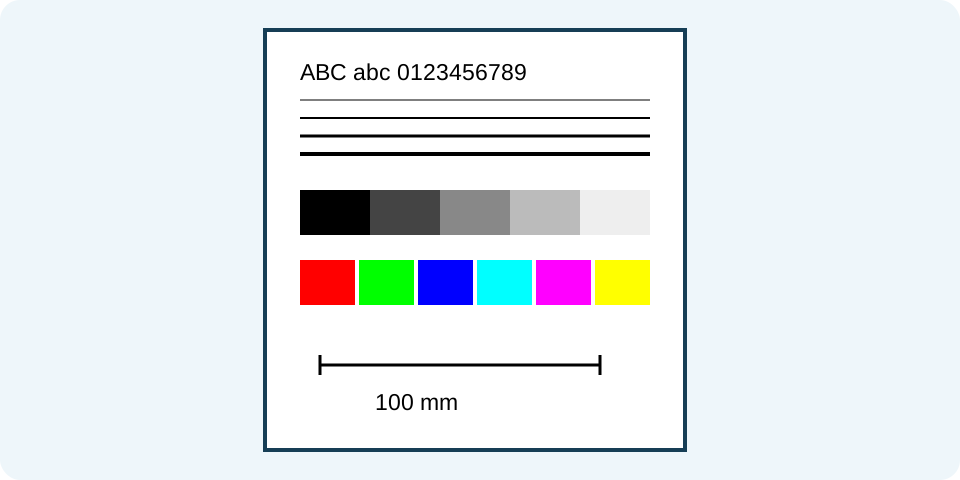
The sheet uses vector text and shapes, including 12 pt black text and a line intended to be 100 mm at the stated scale. A4 is 210 × 297 mm; Letter is 215.9 × 279.4 mm. Digital color patches are RGB, including illustrative cyan, magenta, yellow and black patches, not separate ink-channel tests.
Worked Example
A 100 mm reference line that measures 95 mm on paper is 5% shorter than intended. Recheck paper and scaling settings before interpreting other differences; that observation alone does not diagnose a printer fault.
Choose Paper and Pattern Before Printing
Select A4 or Letter to match the actual paper, then color or monochrome for the pattern. The monochrome choice hides the six color patches; it does not switch the printer driver to black ink only. The remaining text, lines, gray steps and reference length stay on the page. The print button opens the browser's print dialog. It does not detect a printer, inspect its connection or report that a physical sheet has printed successfully.
Check the chosen printer, paper, orientation and scale in that dialog. Use portrait, matching paper and 100% or actual-size scaling for a reference-length comparison. Disable headers and footers where available and review the preview. Background or color-related settings can affect output. Browser and driver settings may override the requested page layout. A cancelled dialog is not a failed printer test, and a saved PDF is not evidence that the printer produced the pattern.
Understand the Nominal Sheet Geometry
The original pattern is an SVG measuring 186 × 245 mm. The page requests a 12 mm margin. A4 measures 210 × 297 mm, leaving 186 × 273 mm inside those margins. Letter measures 215.9 × 279.4 mm, leaving 191.9 × 255.4 mm. The pattern nominally fits either interior in portrait. These are layout calculations, not measured printable areas for a particular printer or a guarantee that its hardware will reproduce every edge.
The reference runs from 20 to 120 in the pattern's millimetre coordinates, a nominal length of 100 mm. Measure the printed line between its endpoint marks with an appropriate ruler. A physical length of 95 mm would indicate a 95% reproduction for that line; it does not by itself identify which setting caused it. Compare the paper and scaling choices first. Do not judge physical size from the screen preview, where zoom and display density can change appearance.
Read Lines and Gray Steps as Observations
Four horizontal strokes have nominal widths of 0.1, 0.2, 0.3 and 0.5 mm. Compare their continuity, clarity and relative thickness on the physical sheet, keeping paper and print settings the same for repeat checks. Missing or uneven strokes are observations to record, not automatic identification of a blocked nozzle, damaged component or low cartridge. A browser SVG cannot inspect the printer's internal diagnostic state.
The eleven gray patches progress from black to white with equal encoded RGB steps. They are a simple visual progression, not a calibrated measurement of brightness or density on paper. Some neighboring steps may look closer under a particular paper, lighting or driver setting. Record which steps merge or appear tinted instead of claiming that the printer passed a color-accuracy certification. Compare the actual sheet in consistent light rather than against a bright screen.
Interpret Color Patches Without Cartridge Claims
Color mode contains red, green, blue, cyan, magenta and yellow RGB patches. Their appearance depends on the printer's conversion from the document colors to its actual inks or toner, driver settings and paper. They are not six direct measurements of separate cartridges. A missing or unexpected printed color therefore does not isolate a particular consumable automatically. This tool does not query ink levels, choose an ICC profile or perform color calibration.
For a repeatable comparison, note paper type, driver quality mode, color mode and the visible symptom. Change one justified setting at a time. Do not interpret selecting monochrome on this page as proof that composite gray uses only black ink. The driver controls that separately. A manufacturer-generated diagnostic or nozzle pattern may answer a different hardware question; use the instructions for the exact model rather than treating this general print sheet as its replacement.
Preserve the Result and Choose the Next Check
Record the date, printer model, chosen settings and observations such as a repeated gap, faint text or an incorrect reference length. Keep one comparable earlier sheet when evaluating a later print. A photograph can help document a defect, but its lighting, exposure and compression make it unsuitable as a precise color measurement. This page does not score a photographed sheet or automatically identify the cause of a fault.
The browser may offer a save-to-PDF destination in its dialog, but Savvy Toolkit has no separate PDF download generator here. Confirm the saved file and its layout independently before printing it elsewhere. For consumable planning, the cost-per-page calculator is a separate arithmetic task; it cannot establish the quality or remaining ink from this pattern. Use the printer's own support instructions for a model-specific diagnosis after documenting what the actual sheet shows.
What the Result Means
The browser opens a print dialog without proving that a job completed. Printable margins, driver settings, paper and color management can alter the result. No borderless output, calibrated color match or ink-defect diagnosis is guaranteed. A general browser sheet cannot replace a model-specific nozzle pattern.
Common Questions
Does a Missing Colored Block Prove Its Cartridge Is Empty?
No. Drivers convert RGB patches to device output. Color settings, conversion, paper and several hardware conditions can affect them. Consult the model’s diagnostic instructions.
Can I Preview the Sheet Without Printing?
Yes. Inspect the browser print preview and cancel the dialog. A preview cannot show how the physical printer will reproduce the sheet.