How to Use This Tool
- Describe where the delay occurs: one game, several apps or a streamed game.
- Compare the same action under similar conditions, changing one connection or display setting at a time.
- Follow the suggested checks and record what changed before trying another adjustment.
Calculation Method
Input travels through the device, operating system, application and display. Online or cloud play can add a network path. The guide uses reported symptoms to prioritize checks, without assigning a measured millisecond value or a hardware pass/fail score.
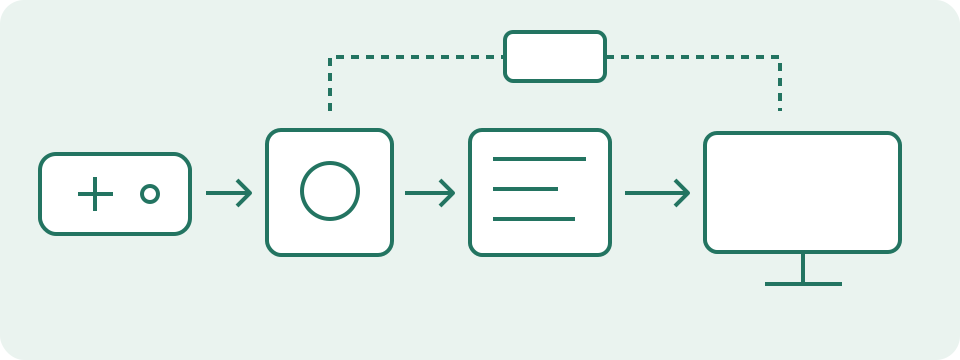
Worked Example
A local game feels delayed on a television but more responsive with its supported game mode enabled. That comparison makes display processing a useful next check; it does not isolate every source of delay.
Choose the Context of the Delayed Action
Select local for a game or application whose relevant task runs on this device without a game-server exchange. Select online for a locally running game that exchanges game state with a server. Select cloud for a remotely rendered game returned as a stream. These contexts change which parts of the path need checking. A local camera turn and an online server-confirmed action can behave differently within the same game. Use the context of the action being investigated, not simply the presence of an internet connection. Unknown is a valid starting point. The page has no automatic game detection and does not inspect running processes, device drivers or remote server logs.
Describe Scope and Motion Separately
Choose one game or app when the problem has been observed in that application alone; choose several after reproducing the same symptom in multiple receiving applications. Neither choice identifies the responsible component. A common device, display, overlay or workload can affect several apps. Next distinguish actions that respond late from movement that looks choppy. Late response can occur with otherwise smooth frames; choppy movement can occur without an unusually late initial action. Both selects the two sets of checks together. Avoid treating a low frame rate, a missing button action and a server correction as interchangeable observations. Leave an unclear symptom unknown until a short repeatable action makes it easier to describe.
Use the Display Comparison Field as an Observation
The display field asks what happened in a controlled comparison, not which screen is better. Use the same action and similar workload with another available display or a supported mode on the current display. Record the original resolution, refresh rate and picture mode so the comparison can be reversed. Choose improved only for an observed improvement; no noticeable change is different from not compared. An improvement adds display checks but does not calculate a millisecond reduction. No noticeable change does not remove display contribution from a delayed-response path. Several stages may still contribute. A cable swap that also changes resolution or refresh rate is not a comparison of cable latency alone.
Read Every Suggested Path That Applies
The examples show groups of checks produced by the stated answers. A local delayed action in one app leads to input, display and app checks. Choppy movement across several local apps leads to rendering and system checks. An online action can add network checks alongside local input and rendering checks. The result is not a ranked hardware score or an exclusive verdict. Changing an answer updates the groups shown; Calculate announces the current group headings for assistive technology. Reset returns the fields to their unknown or untested state. No numeric latency, FPS or ping value is calculated from these choices. Keep an independent note of the comparison because the page does not export an evidence report.
| Where does the issue occur? | How many apps are affected? | What do you notice? | What happened in a controlled display comparison? | Suggested next checks |
|---|---|---|---|---|
| Local game or app | One game or app | Actions respond late | Not compared | Check the input path; Compare display processing; Check the affected game or app |
| Local game or app | Several games or apps | Movement is choppy | No noticeable change | Check rendering and frame delivery; Compare across the system |
| Online game | One game or app | Both delayed and choppy | Not compared | Check rendering and frame delivery; Check the input path; Compare display processing; Check the affected game or app; Check the game-server path |
| Unknown | Unknown | Unknown | Not compared | Collect a repeatable comparison |
Separate Event Presence from Visible Response
A keyboard, mouse or gamepad test can help check input that the browser receives. A correctly reported press is useful evidence for that session; it does not prove the game uses the same binding or response path. Reserved shortcuts, focus loss and browser mapping can hide or change reports without a broken device. The interval between two mouse presses is also different from the time between a press and a displayed response. A reaction test includes the person's response to a cue. Browser timestamps and animation callbacks cannot see the instant a switch closes or confirm when a panel emits light. Actual end-to-end measurement needs a suitable controlled method that connects the physical action to its visible result.
Make the Next Comparison Reversible and Specific
Take the first relevant check, preserve its original setting and repeat a short task. For an app check, compare the binding or one supported latency option. For rendering, compare the same scene and record the game's own frame-time information. For display, keep the signal mode documented. Online and cloud checks need the service or game region and its own network statistics rather than a ping to an unrelated endpoint. Change one condition and repeat the original condition afterward. A useful record contains expected action, observed response, original setting, changed setting and repeated outcome. Persistent uncertainty is a reason to retain the evidence for official support, not to infer a failed component or install a generic optimizer.
What the Result Means
Browser event timing cannot reveal the exact physical press or the moment a screen pixel changes. A human reaction test also includes reaction time. Missing observations remain unknown.
Common Questions
Does Higher FPS Remove All Input Lag?
No. Frame rate is one part of the response path; the device, software, queueing and display can also contribute.
How Can Actual End-to-End Latency Be Measured?
A suitable hardware analyzer or carefully controlled camera setup is needed to connect physical input with visible response.