How to Use This Tool
- Start capture and move the pointer into the test area.
- Press and release the primary, middle and secondary buttons, then move and scroll.
- Review the log, stop capture and reset before repeating the test.
Calculation Method
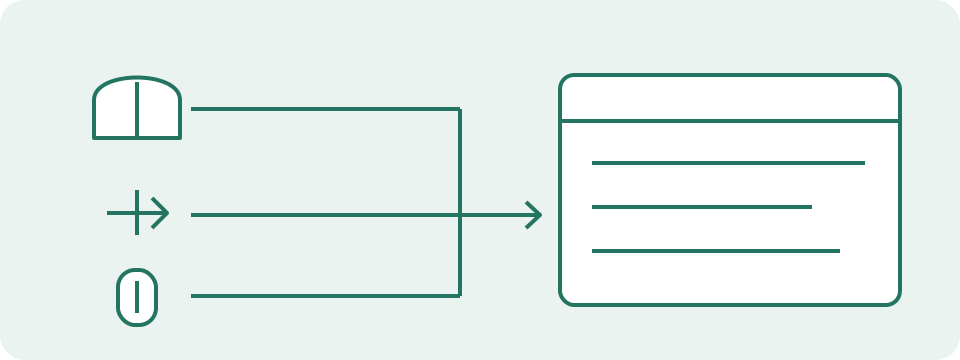
The browser reports button roles and pointer positions. Primary is usually the left button, auxiliary is usually the middle button and secondary is usually the right button; remapping can change these roles. Positions use browser coordinates. Wheel deltas include a unit mode, which can represent pixels, lines or pages.
Worked Example
Pressing then releasing the primary button produces separate down and up observations. Scrolling can report a positive or negative vertical delta; interpret that value together with its reported unit.
Test One Action at a Time
Start capture and move the pointer inside the test area. Press and release the primary button slowly, then repeat with auxiliary and secondary buttons that the device actually provides. Watch the down and up entries and the held-button state. Move across the area, stop, and make a short scroll in each direction. Keep a note of the intended action beside the observed output. The text log retains the latest 30 entries rather than an unlimited recording. Stop ends capture but keeps visible history; Reset or a new Start clears the session. Test only the controls used in the failing task before adding more actions.
Button Numbers Describe Roles, Not Fixed Physical Sides
Browser button 0 is primary, 1 auxiliary and 2 secondary. Buttons 3 and 4 can represent additional controls, but their browser behavior depends on device mapping and shortcuts. Primary is often physically left; swapping the primary button in system settings can reverse that association. A left-handed configuration is not a fault when the expected physical button reports the primary role. Some side buttons navigate history before a useful observation reaches this page. This test accepts trusted input reported as mouse and excludes touch or pen reports. A touchpad can still report mouse, so an accepted event does not identify a separate physical mouse or its model.
Read a Wheel Delta with Its Unit
The delta mode accompanies the horizontal and vertical wheel values. Mode 0 represents pixels, mode 1 lines and mode 2 pages. A value of 3 lines cannot be compared numerically with 3 pixels as the same scroll distance. System scrolling settings, smooth scrolling and browser processing can change the numbers. A trackpad can also produce continuous horizontal and vertical movement without wheel notches. This page records delivered deltas; it does not count physical notches or calculate a wheel's internal resolution. Compare direction and consistency under the same settings. One reversed or unexpected delta does not establish a worn encoder, and a changed browser setting can alter the report without any hardware change.
| deltaMode | Unit | Example deltaY |
|---|---|---|
| 0 | pixels | 3 |
| 1 | lines | 3 |
| 2 | pages | 3 |
Keep Movement Coordinates Separate from DPI
The movement display describes a position in CSS pixels relative to the test area. It does not report the sensor's counts per inch, desktop resolution or distance travelled on the mouse mat. Browser zoom, display scaling and the area's size affect the relationship between physical screen pixels and CSS coordinates. For readability, movement display updates are throttled to about 50 ms. That update interval is an interface choice, not a USB polling measurement. Browsers can also combine movement updates before delivering them to a page. A smooth trace here cannot certify a sensor, and a short gap cannot isolate radio interference, operating-system scheduling or a busy browser.
Review Release Events and Interrupted Sessions
Hold a button briefly, then release it while keeping the pointer in the area. A received release removes its held state. The page also listens for a release at the window level, but no page can promise to receive an event after the system intercepts input or focus changes. Leaving the mouse area clears held states; leaving the browser or hiding the tab stops capture. Those cleared states prevent a stale display and do not prove a physical release. The context menu is suppressed only inside the active area. Stop before ordinary navigation. This check is not a complete drag-and-drop validator, and it does not reproduce the receiving application's selection or drag behavior.
Use Repeatable Comparisons Before Assigning a Cause
Repeat an unexpected result with the same button, browser and system settings. Then change one relevant condition, such as the receiving application or a supported connection, and repeat the same physical action. Preserve the original setting so it can be restored. A failure across several applications gives different evidence from a failure confined to this page. Keep observations specific: button role, down or up, wheel unit, focus state and intended gesture. Use the separate interval tester for unexpectedly close presses rather than inferring double-click timing from this log. Correct input that still feels delayed in a game needs frame, display and network checks. None of these event observations measures physical latency, hardware polling rate or sensor DPI.
What the Result Means
The context menu is suppressed only inside the active test area. Browser and system behavior can intercept some buttons. Touchpads can report mouse input. This test does not measure sensor DPI, hardware polling rate or physical input latency.
Common Questions
Does a Visible Event Prove That the Whole Mouse Works?
It proves only that this event reached the browser. It cannot identify every hardware, driver or connection problem.
Why Is a Wheel Value Different Between Browsers?
Browsers and system settings can report different units or process scrolling differently. Raw deltas are not a universal count of wheel notches.