How to Use This Tool
- Press Start and respond to the browser’s microphone permission request.
- Choose an available input, check its mute control and speak a short sentence.
- Press Stop when finished. This releases the microphone tracks opened by this test.
Calculation Method
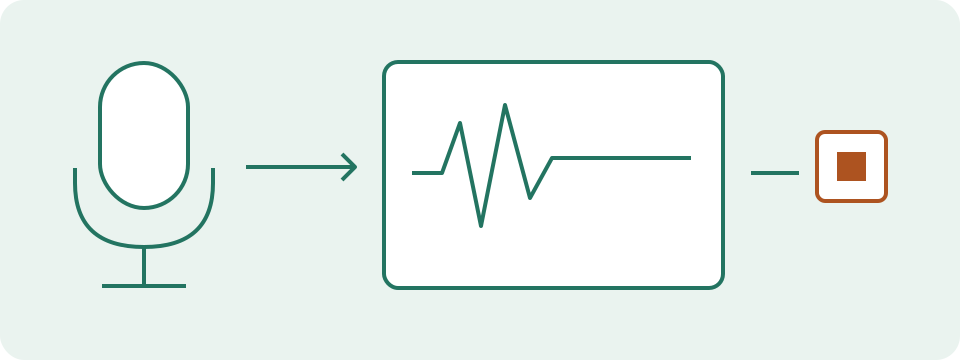
The page reads samples from the permitted audio stream and displays a relative input level. Processing stays in this page; this test does not record or upload microphone audio. Device names can remain hidden until permission is granted.
Worked Example
Speak, pause and repeat from the same position. A rise during speech and a fall during the pause show a change in the received signal. Background sound can also move the meter.
Start with the Input That the Browser Actually Selects
Start requests microphone audio, without camera access. Approve the site's microphone request and speak a short phrase while keeping the page visible. The default input can be a laptop microphone, headset, USB device or virtual source chosen by the system. After access, the selector lists available microphone inputs that the browser exposes. Choose another input and press Start again; changing the selector stops the previous session. A permission-filtered list is not an inventory of every connected device. Missing names do not authenticate or disprove a connection. Enumeration can fail while an already permitted stream continues to provide readings.
Read the Permission State Before Changing Hardware
A pending prompt is not a failed microphone. The browser can wait for a decision without returning an error. Stop cancels this page's pending session; a stream arriving after cancellation is released. Denied access calls for checking the site's permission and the operating system's permission for the browser. A missing selected input calls for checking that exact device and connection. An unavailable input can have several causes, including another application's use or a system restriction. It does not identify one cause automatically. Check a physical mute switch and the selected system input, then repeat one change at a time.
Understand What the RMS Reading Represents
The page takes 2,048 digital samples, squares their values, averages them and takes the square root. This is RMS amplitude. Its dBFS display uses 20 × log10(RMS), referenced to an amplitude of one. RMS 0.1 gives −20 dBFS; 0.01 gives −40 dBFS. A window containing only zero samples represents digital silence and has no finite dBFS reading. A quiet room can still produce nonzero samples from background sound, electronics or processing. These numbers do not measure room sound pressure, microphone sensitivity or perceived loudness. The display is updated at most once each 100 ms, which is not the hardware sample rate.
Equal RMS Readings Can Hide Different Peaks
The independent four-sample examples below share an RMS value but have different largest samples. A brief peak can disappear into an average. Savvy Toolkit displays RMS, not a sample-peak meter, waveform or clipping detector. The peak column in this explanation is calculated from the illustrative samples; it is not an extra live result. Do not enter the live RMS dBFS reading into the manual gain calculator's observed sample-peak field. That calculation needs a peak reading explicitly reported by a suitable meter. A moving RMS display shows arriving signal, not a guarantee that loud words remain undistorted.
| Samples | RMS | RMS dBFS | Sample peak |
|---|---|---|---|
| 0.1; −0.1; 0.1; −0.1 | 0.1 | −20 | 0.1 |
| 0.2; 0; 0; 0 | 0.1 | −20 | 0.2 |
| 0; 0; 0; 0 | 0 | −∞ | 0 |
Make a Comparison That Can Be Repeated
Use the same phrase, microphone position and system input for a quiet pause and normal speech. Note the selected source and compare the change, rather than chasing a universal speech target. Browser or device processing can include automatic gain, echo cancellation or noise suppression; this page does not provide switches to control those features. A high reading alone cannot identify excessive hardware gain. A low reading alone cannot distinguish distance, mute, source choice and processing. Repeat an unexpected result in the actual recording or calling application with its selected input documented. The two applications can use different processing and capture settings.
Stop the Session and Choose the Next Check
Stop clears the displayed reading and releases this page's microphone tracks and audio context. Hiding the tab or leaving the page also ends this session. This does not revoke site permission, disconnect the device or stop another application sharing it. Analysis stays local, with no microphone recording, playback, download or upload action. To investigate a call, compare its input selection first, then its output route and connection separately. The speaker test checks requested playback channels; the call-bandwidth calculator estimates a stated network budget. Neither turns this RMS test into a complete microphone-quality or call-quality report.
What the Result Means
Access requires a supported browser and secure page. Permission denied, unavailable or busy input, and an ended stream are distinct states. Silence alone does not prove a fault. Gain, automatic processing and microphone position affect the level; it is not calibrated sound pressure, a latency measurement or a frequency-response score.
Common Questions
Why Is Access Denied or Unavailable?
Check this site’s browser permission and the operating system’s input permission. An unavailable-device error can involve another app, hardware or system access; it does not identify one cause.
Why Does the Meter Stay Still?
Check the selected input and its mute setting. An ended stream needs a fresh Start action. An unsupported browser cannot run this capture test.