How to Use This Tool
- Press Start and respond to the camera permission request.
- Choose an available camera and check the live image, lens cover and reported track settings.
- Press Stop to end this page’s camera tracks. Start again to begin a new session.
Calculation Method
The browser supplies a local video stream after permission. Available track settings describe its current configuration, such as width, height and frame rate. A configured frame rate is not a measured delivered FPS. This test does not record or upload video.
Worked Example
A reported 1280 × 720 stream contains 921,600 pixels, about 0.92 megapixels per frame. That describes this stream, not the camera sensor’s maximum resolution or its image quality.
Choose the Source Before Comparing the Picture
Start requests camera video without microphone audio. Keep the page visible, approve the browser's camera prompt and check the reported source name. The default can be a built-in, USB or virtual camera. After permission, the selector lists inputs exposed by the browser. Changing it stops the current session; press Start again for the new source. A label identifies the browser's reported source, not an authenticated hardware model or serial number. A missing camera in this list can reflect permissions or system support. It does not prove that the physical device is absent or broken.

Reported Settings Are the Current Configuration
The width, height and frame rate come from the video track's settings at startup. They describe that session's reported configuration, not the camera's maximum capabilities. The page does not count decoded frames, continuously measure delivery or probe every supported mode. A reported 30 FPS setting therefore does not prove that 30 distinct frames arrived every second. Missing properties are shown as unavailable, not zero. This test has no resolution or frame-rate selector. To compare applications, record their source and reported settings separately; requesting a different mode can change the comparison before image quality is considered.
Keep a manual comparison record with browser, selected source, reported dimensions and reported FPS, followed by the visible observation. Leave an unavailable field marked unavailable instead of filling it from packaging. Stop and restart after a source change, then note the new session separately. A preview that looks similar at a different displayed size can still use a different capture mode. Compare the declared fields as well as the picture.
Separate Preview Size from Captured Pixel Count
The preview element has 960×540 layout dimensions. Its displayed size is not the width and height of the captured stream. Read the reported settings instead of measuring the picture on screen. For an independent example, 1280×720 contains 921,600 pixels, or 0.9216 MP. A 1920×1080 frame contains 2,073,600 pixels, or 2.0736 MP. Both have a 16:9 ratio, and the second has 2.25 times the area, not twice. These calculations are explanatory examples, not additional live outputs. More pixels alone do not establish better focus, colour, lighting or lens quality.
| Pixels | MP | Ratio |
|---|---|---|
| 1280×720 | 0.9216 | 16:9 |
| 1920×1080 | 2.0736 | 16:9 |
Compare an Ordinary Scene Under Repeatable Conditions
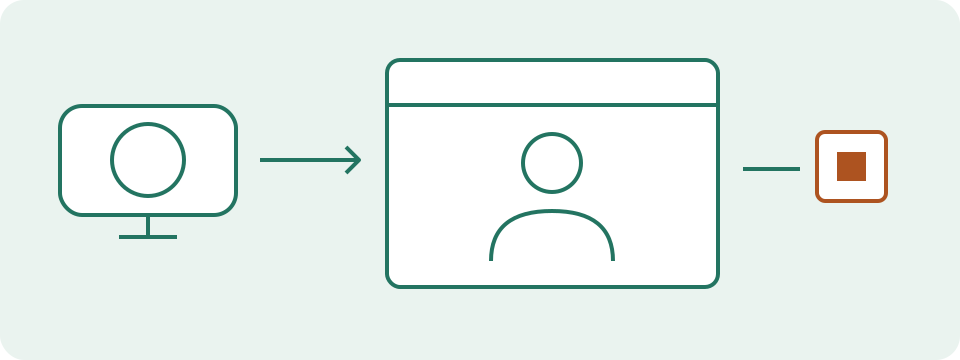
Place an ordinary object with clear edges or a printed line in the view. Keep camera position, distance and scene unchanged while comparing a modest change in lighting or source. Check the physical privacy shutter before interpreting a dark picture. Light from in front and light from behind can produce different visible results, but this page does not measure illuminance or certify exposure. It provides no brightness, autofocus or white-balance controls. The hardware illustration is a teaching scene, not a screenshot or proof of a tested camera. Use the actual preview to describe the observation in your own setup.
Treat Each Failure State as a Starting Point
A denied request calls for site and system permission checks. A missing selected source calls for checking that input and connection. An unavailable source can reflect access restrictions or competing use; it is not a conclusive hardware diagnosis. An unanswered permission prompt can remain pending. Stop cancels this session and releases a stream that arrives later. Playback blocked means the preview could not start; use Start to retry after the underlying permission or browser restriction is addressed. A black preview with access granted calls for checking shutter, source and scene before comparing another supported application. Change one condition at a time.
End Capture and Compare the Actual Call Separately
Stop clears reported settings and releases this page's camera tracks. Hiding the tab or leaving the page also ends capture here. It does not revoke the site's permission or end another application's track using the same source. The preview stays local, with no photograph, recording, fullscreen-report or upload action. A clear local preview does not verify the network, remote receiver or calling application's encoder. Check microphone input separately, then compare a short call in the intended application. Its selected camera, processing and connection can differ from this test. Use the call-bandwidth tool only for a stated rate budget.
What the Result Means
A secure page and supported capture API are required. Device choices and names depend on permissions. Denied access, unavailable or busy camera, unsupported capture and ended stream need different messages. A working preview does not certify performance in another application.
Common Questions
Why Is the Preview Blank or Access Unavailable?
Check the selected camera, physical cover and browser/system permissions. Another app can affect access, but an unavailable-camera error can also have other causes.
Does Stop Remove the Browser Permission?
Stop ends the tracks opened by this page and clears its preview. The site’s permission can remain allowed. Other tabs or apps can still use the same camera.