How to Use This Tool
- Enter the number of cameras sharing the same recording settings and the average video bitrate per camera.
- Add the recorded audio bitrate, daily schedule, retention days and active recording percentage.
- Compare recorded data with the volume required after reserving the selected share of space.
Calculation Method
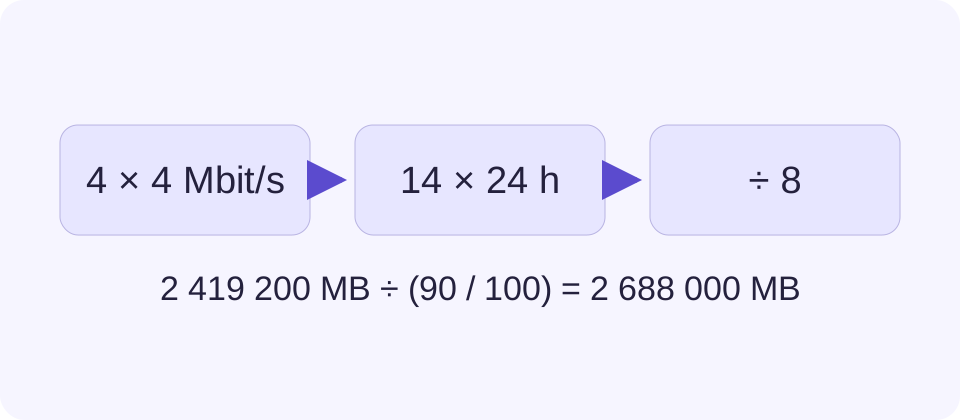
Recorded bytes equal camera count × combined video and audio bits per second ÷ 8 × scheduled seconds × recorded proportion. Required volume equals recorded bytes divided by one minus the reserved fraction. A 10% reserve means the recordings can occupy 90% of the volume.
Worked Example
Four cameras at 4 Mbps without audio, recording 24 hours a day for 14 days, produce 2,419.2 GB. Reserving 10% requires 2,688 GB of usable recording volume.
Choose the Stream That Is Actually Recorded
Start with the recorder settings, not the resolution printed on the camera box. An NVR may save the main stream while a phone displays a much smaller substream. Count every stream that is stored. For cameras with different rates or schedules, run each group separately and add their recorded-data totals. Apply a common reserve once to the combined total.
A measured average is more useful than a codec label. Record a representative interval that includes busy periods and darkness, then divide its file bytes by its duration and multiply by eight. A short quiet sample can miss traffic, rain, noise or changes in lighting. Document the interval used and rerun the plan after changing camera settings.
Keep the Schedule and Activity Percentage Separate
Hours per day describe the scheduled window. Activity describes how much of that window is actually recorded. Eight scheduled hours with 25% activity means two recorded hours per day in this model. Continuous recording uses 100% activity even when nothing moves in the image.
Motion-triggered recording also includes configured pre-event and post-event footage. Closely spaced events may join into one long recording. Use observed recording time for the activity input rather than the fraction of time people appear in view. An average bitrate already calculated over the entire day must not be reduced again by an idle-time percentage.
Understand the Disk Reserve Before Choosing Drives
A reserve is a share of the final usable recording volume. Dividing by 0.9 leaves 10% outside the data budget. Adding 10% instead produces a smaller volume and is a different calculation. The reserve can represent an explicitly chosen contingency, but the page does not know a recorder’s file-system or database overhead.
The table uses decimal GB. A different display in GiB does not mean bytes disappeared. Check the recorder’s supported disks, maximum drive size and available capacity after configuration. RAID parity and other non-recording uses reduce the volume that remains available; do not compare the result with raw drive capacity.
| Scenario | Recorded Data | Required Usable Volume |
|---|---|---|
| 100% activity, no reserve | 2,419.2 GB | 2,419.2 GB |
| 100% activity, 10% reserve | 2,419.2 GB | 2,688 GB |
| 50% activity, 10% reserve | 1,209.6 GB | 1,344 GB |
Check the Estimate Against Real Retention
After installation, compare the recorder’s growth in stored bytes with this daily estimate. Confirm the oldest playable recording for every camera after the planned period has elapsed. A recording schedule, failed disk, disconnected camera or configured overwrite rule can change what is available even when enough storage exists.
A larger disk does not establish a suitable retention policy or prove that the captured detail is useful. Verify the recording quality separately, including the scenes that matter and the chosen playback/export workflow. Recheck after adding cameras, enabling audio or changing bitrate control. The calculator makes those assumptions visible; it cannot monitor the system or guarantee future footage.
What the Result Means
This is conditional arithmetic, not a scan of cameras or a retention guarantee. Bitrate, recording activity, extra streams and recorder overhead can change. RAID, backups, supported drive sizes and retention policy need separate checks.
Common Questions
Does This Also Work for an NVR?
Yes. The calculation concerns encoded recordings. Use the bitrate actually stored by the NVR, which may differ from a remote-viewing stream.
Can H.265 Halve the Result Automatically?
No fixed saving is assumed. Enter the measured or documented bitrate for the selected mode. Codec labels alone do not establish its file size.