Identify Which Refresh Rate You Are Checking
A monitor can advertise 144 Hz while the operating system currently sends 60 Hz. A game can render at another frame rate, and a browser can deliver animation at yet another cadence. Write down which number is lower than expected before changing settings. The advertised capability, selected signal mode and observed software timing answer different questions.
A useful starting record contains the monitor model, connection path, active resolution and selected refresh rate. Include a dock, converter or capture device in the path. A higher number on the monitor's box does not establish that every input supports that number at every resolution and color format.
Read the Active Mode in Windows
In Windows 11, open Settings, System, Display and Advanced display. Select the intended monitor before reading its information. The active resolution and refresh-rate controls belong to that display. Choosing the laptop's internal screen while testing an external monitor is an easy way to compare unrelated numbers.
Select a supported rate from the available list and check the resulting resolution too. Windows can indicate rates that require a different resolution. Avoid interpreting a lower-resolution high-Hz mode as proof that the original resolution supports it. Menu wording can vary with system version and hardware; use the current Microsoft instructions linked below when the layout differs.
Check the Display Setting on a Mac
Open System Settings and Displays, then select the relevant display and inspect its refresh-rate options where available. Some supported Apple displays offer fixed choices and adaptive modes. The options depend on the device and connection, so an absent setting does not prove that the website or monitor is faulty.
Note whether the current selection is fixed or adaptive. For comparisons, record the choice rather than silently assuming a constant rate. After testing, restore the preferred setting. Do not install an unknown utility merely to force a mode the documented hardware path does not support.
Use the Browser Test as a Second Observation
Place the entire browser window on the target monitor and start a visible, uninterrupted run of the refresh-rate test. It samples animation callback timing. That often follows display timing, but it does not directly read the panel's scan electronics. The output should be labelled as a browser cadence estimate.
Avoid mixing samples from different displays. Moving a window mid-run, minimizing it or switching away changes the conditions. A hidden page may stop receiving animation callbacks. Restart after returning to a stable visible window so a pause is not misreported as a very low monitor frequency.
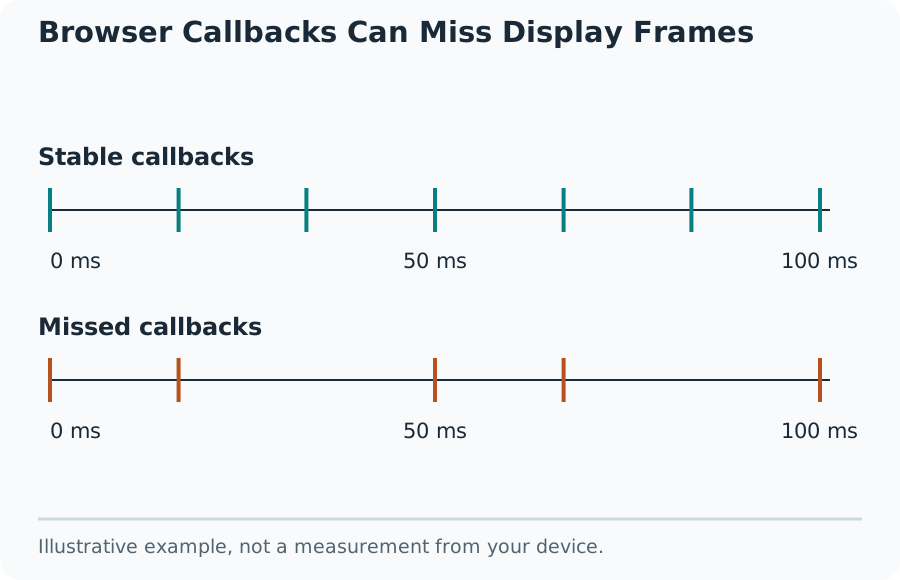
Browser Callbacks Can Miss Display Frames
Convert Hertz and Milliseconds Correctly
The nominal time per refresh opportunity is 1,000 divided by Hz. At 60 Hz it is about 16.67 ms; at 120 Hz, 8.33 ms; at 144 Hz, 6.94 ms; at 240 Hz, 4.17 ms. These values help interpret a timing trace without turning it into a direct hardware measurement.
A reading near 59.94 rather than exactly 60 is not automatically a defect. Decimal modes and measurement variation exist. Compare the full interval distribution and the operating-system mode instead of treating the last decimal as a verdict. A precise-looking output can still be limited by browser scheduling and sample quality.
Investigate a Browser Reading Near 60 on a Faster Mode
Confirm the active operating-system mode first. Then repeat with the browser window fully on one screen, under a stable power setting. Check the browser's graphics acceleration and relevant rendering preferences. Close work that visibly interrupts the test. Change one condition, rerun, and note whether the result changes.
A browser may cap animation cadence despite a faster active monitor mode. Browser version, platform and power policy matter. That result identifies a software observation requiring investigation, not proof that the panel cannot operate above 60 Hz. Compare another current browser only after recording the first setup, rather than mixing its samples into one result.
Trace the Cable, Port and Adapter Path
Read the monitor's manual for supported input modes and the computer's output specifications. A connector shape alone does not identify a usable video bandwidth. Adapters and docks can introduce their own limits, and some share a link between video, USB devices and additional displays.
Use the display-bandwidth calculator to understand the stated signal assumptions, then compare them with documented modes. It does not negotiate a link or certify a cable. A direct supported connection is a useful comparison with a docked path. Keep resolution and refresh demand equal during that comparison so a second change does not hide the cause.
Separate Dynamic Refresh Rate and Adaptive Sync
A system's dynamic refresh setting can adjust operation according to workload. Adaptive-sync behavior relates to matching supported display timing with changing frame delivery. The names and controls are not interchangeable, and a browser test does not confirm an entire supported variable-refresh range.
Record the relevant settings and compare fixed conditions where the hardware permits. A variable reading can reflect a policy change, an interrupted browser or another limit; the number alone cannot choose the explanation. Do not disable every display feature at once, because the next observation would not reveal which change mattered.
Do Not Confuse Game FPS with Display Hz
FPS describes frames produced or delivered by an application. Hz describes a display timing rate. A game producing 90 frames per second on a 144 Hz mode does not mean the monitor has changed to a 90 Hz fixed mode. Synchronization and presentation policy determine how those frames reach the display.
A browser timing result is also not a game benchmark. The workloads differ. Use the game's own frame-time information for its performance and keep resolution, scene and settings comparable. A refresh-rate change cannot repair a network connection, and a faster network cannot directly raise the display's selected Hz.
Read Long Frame Gaps Carefully
A mostly steady 6.94 ms browser trace with occasional 13.89 ms gaps has interruptions near twice its usual interval. The trace can reveal uneven callback delivery. It does not prove physical frame skipping or identify whether the cause was a browser task, operating-system scheduling or another rendering delay.
Compare median interval, whole-run rate and visible variation rather than a single maximum. Stop an interrupted run and repeat under recorded conditions. Appropriate specialist tests or measurement equipment are needed for stronger claims about scanout or skipped panel updates. Keep an illustrative timing graphic clearly separate from a captured measurement.
Put Reaction Scores Beside the Setup, Not Above It
A browser reaction score includes portions of display and input latency along with the person's response. Changing refresh rate may alter the path, but the test cannot isolate that change from attention, trial variation or input differences. Do not subtract one frame interval from every response as a universal correction.
Use the same input method and compare groups of valid trials. For 210, 230, 240, 260 and 400 ms, the median is 240 ms while the mean is 268 ms. A single best click hides that variation. These informal observations are not medical results or a certified hardware-latency benchmark.
Finish with a Reproducible Result
Keep the selected monitor, active mode, cable path, power setting, browser and observed cadence together. A short before-and-after record makes a successful setting change understandable. It also helps distinguish an unavailable high-Hz mode from a browser running below an available mode.
Stop when the original question is answered. A supported mode selected correctly and a stable browser estimate can be enough for an everyday setup check. Motion clarity, pixel response, color accuracy and total input lag are separate tasks. Claiming all of them from one Hz number would exceed the evidence, even when the page animation looks smooth.