How to Use This Tool
- Choose a background, pattern speed and supported display setting to compare.
- Press Start, keep the tab visible and follow the moving shape. Leave the pattern unchanged during each comparison.
- Press Stop or Escape to end motion. Change one setting, then repeat at the same speed.
Calculation Method
The pattern moves using elapsed browser animation time. Speed is expressed in CSS pixels per second, not physical panel pixels. Display response, image persistence, settings and browser frame delivery can all affect the appearance.
Worked Example
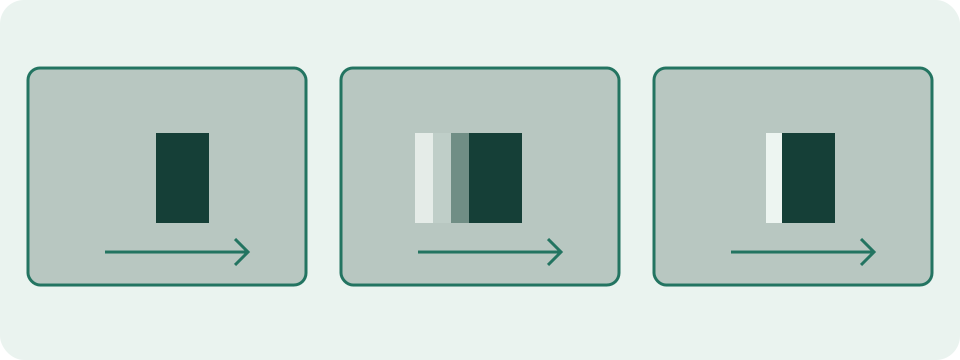
A trail seems less visible with one overdrive setting, but a bright halo appears around the moving edge. Compare the original setting again using the same background and speed; the observation does not assign a millisecond response time.
Compare One Changed Setting at a Time
Start with the 300 CSS-pixel-per-second option and a light background. Follow the front and rear edges of the moving square rather than staring at its centre. Repeat with the dark background, then change one monitor setting such as overdrive and run the same speed again. Keep refresh rate, brightness, connection and room lighting unchanged during a comparison.
A faint trail behind the square, a dark or bright fringe ahead of it, or a coloured edge are observations, not automatic diagnoses. Photographing the screen can help compare runs only when camera exposure, shutter, focus and framing remain fixed.
Understand the Exact Animation
The square is 64 CSS pixels wide. The page offers 100, 300 and 600 CSS pixels per second. Position uses elapsed animation time: distance = speed × elapsed milliseconds ÷ 1,000. For an 800 CSS-pixel surface, the travel span is 864 pixels and the position is distance modulo 864, minus 64.
At 300 CSS pixels per second, 500 ms produces 150 pixels of travel and a position of 86. At 3,000 ms, distance is 900 and the wrapped position is -28. Browser callbacks schedule the drawing, but the formula does not assume a fixed number of callbacks.
| Speed | Elapsed | Distance | Position |
|---|---|---|---|
| 100 px/s | 500 ms | 50 px | -14 px |
| 300 px/s | 500 ms | 150 px | 86 px |
| 600 px/s | 500 ms | 300 px | 236 px |
| 300 px/s | 3,000 ms | 900 px | -28 px |
CSS Speed Is Not Panel Response Time
CSS pixels can be rescaled by browser zoom, operating-system scaling and the display path. The requested speed is therefore a repeatable page condition, not a measurement of physical millimetres per second. The browser also cannot read the panel's GtG time, MPRT, pixel voltages or overdrive table.
Refresh rate affects how many distinct positions may be presented. Frame pacing, composition, variable refresh, capture and panel transitions all influence the visible edge. This pattern does not report refresh rate, skipped frames or input lag.
Interpret Trail and Overshoot Carefully
A trail that weakens after a moderate overdrive change can support a setting comparison on the same display. A new bright or dark halo can suggest overshoot. The best setting can differ by refresh rate and transition, so one square on one background cannot prove a universal choice.
Motion blur can also come from sample-and-hold presentation, eye tracking, low source frame rate, browser timing or camera exposure. Backlight strobing changes another part of the system and can reduce brightness or introduce flicker. Use the monitor manual before enabling unfamiliar modes.
Make a Useful Comparison Record
Record monitor model, connection, native resolution, refresh rate, adaptive-sync state, overdrive name, background and requested speed. Compare adjacent runs rather than memory from different days. Return to the original setting after the test.
For a camera comparison, lock exposure, focus, white balance and shutter, place the camera on a stable support and keep the same crop. A single handheld photograph is not a response-time measurement. Laboratory response testing needs controlled transitions and suitable high-speed or optical equipment.
Use a Small Comparison Matrix
Choose two speeds and two backgrounds, then run all four combinations on the original setting. Change only overdrive and repeat the same four runs. This makes a missing or inconsistent observation visible. Avoid adding HDR, a new refresh rate and a different cable during the same comparison.
Mark each run as no visible trail, rear trail, leading halo, coloured edge or inconsistent. These are descriptive categories, not quality grades. A mode that looks clean in one transition may show overshoot in another, so retain the exact background and speed with every note.
Rule Out Source and Capture Effects
Close video playback and high-load animation in other tabs. Use the same browser window on the same display and keep browser zoom unchanged. A remote desktop, screen stream or video capture can repeat or blend frames before the panel receives them. Test locally before attributing that trail to the monitor.
A camera shutter that remains open across several refreshes produces a trail even when the eye sees a cleaner edge. Rolling shutter can bend or segment the square. Camera evidence is useful only as a controlled comparison of two settings, not as a universal rating.
Controls and Stopping Behaviour
Start is required. A speed or background change stops the active run so the next condition starts cleanly. The test also stops when the tab is hidden, Escape is pressed or full screen exits. Stop returns focus to Start.
Use a comfortable brightness and stop when motion or flicker feels unpleasant. The page stores no result and makes no hardware-quality score.
What the Result Means
Uneven animation delivery, refresh configuration, scaling and eye tracking can change the result. A normal screenshot does not capture perceived motion, and camera settings can add artifacts. The test does not measure GtG, MPRT or input latency.
Common Questions
Does the Highest Overdrive Setting Always Look Best?
No. Overdrive can introduce overshoot artifacts. Compare supported settings rather than assuming the largest value wins.
Will the Pattern Start Automatically?
No. Motion requires Start. Reduced-motion preferences keep the initial view static, and Stop remains available.