Start with the Change You Need to Make
Changing a mouse, DPI stage or game can disturb a familiar setup for different reasons. First write down the change. A new DPI stage in the same game needs a different calculation from a move between games with different rotation scales. An uncomfortable desktop pointer is another problem again. Treating all three as one sensitivity issue leads to repeated adjustments without a useful reference.
Record the current mouse DPI, in-game sensitivity and the game mode being used. Include any custom acceleration or scoped multiplier. Keep a copy of the original settings so the comparison remains reversible. A copied professional player's number lacks this context and cannot establish a suitable setting for another desk, screen or player.
Understand DPI Before Changing It
DPI describes reported mouse counts per inch of physical movement under the stated setting. The active stage matters more than the largest value printed on the product box. A mouse button may switch stages without opening its software. Check the setting directly and avoid inferring it from the speed of the desktop pointer.
Desktop pointer speed is not automatically the same input path as a game's camera. Raw-input handling, operating-system acceleration and game-specific options can separate the two. Keep those settings stable during the conversion. The browser cannot inspect an ordinary mouse's internal DPI configuration, so the converter relies on the value entered.
Preserve Distance When Only DPI Changes
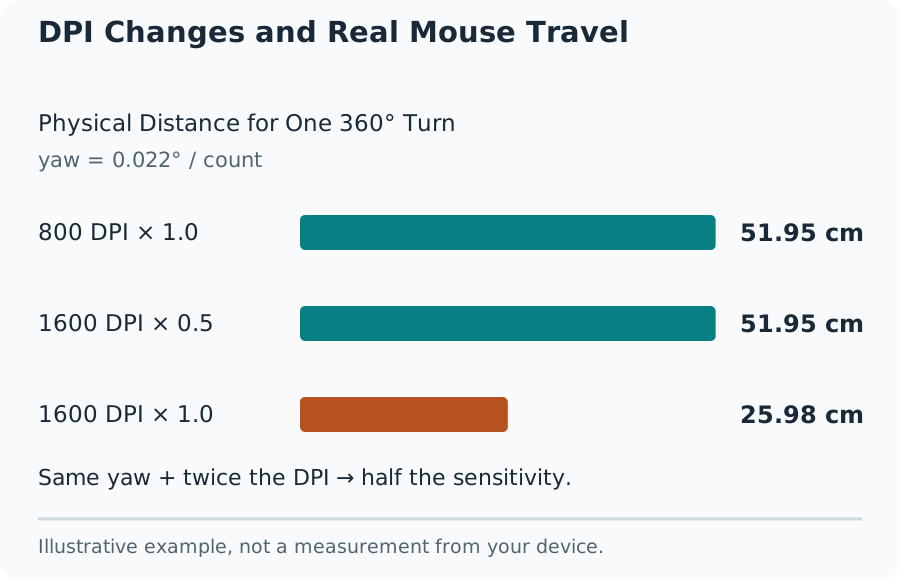
Within an unchanged game and yaw model, DPI multiplied by sensitivity stays constant when the physical turn distance is preserved. Moving from 800 DPI at sensitivity 1.2 to 1,600 DPI requires sensitivity 0.6. Both give 960 eDPI. That equality is useful for this particular same-game conversion.
Do not change DPI, field of view and acceleration together during the first check. One altered setting gives the measured result a clear explanation. After restoring the original distance, another preference can be evaluated separately. Keep enough precision in the new sensitivity and let the game show any rounding it imposes.
DPI Changes and Real Mouse Travel
Use Yaw for Cross-Game Conversion
Yaw is the angle turned per mouse count at sensitivity 1. A rotational conversion needs both games' yaw values as well as both DPI settings. The formula is target sensitivity = source sensitivity × source DPI × source yaw ÷ target DPI ÷ target yaw. A ratio between slider numbers alone omits part of that relationship.
Game coefficients found in community tables need version and mode context. The editable starting coefficient in this converter is a reference assumption, and the final setting deserves an in-game check. A game update, unusual configuration or modified yaw can invalidate a previously reasonable coefficient. Undocumented coefficients are a reason to measure rather than claim precision that the inputs do not support.
Check cm/360 with a Ruler
Physical distance for one turn is cm/360 = 360 × 2.54 ÷ (DPI × sensitivity × yaw). With 800 DPI, sensitivity 1.25 and yaw 0.022°, the distance is about 41.5636 cm. With 800 DPI and yaw 0.07°, matching that distance needs sensitivity about 0.392857. These are explicit example coefficients.
Choose a recognizable reference in a practice area. Mark the mouse's starting position and move slowly in a straight line until the camera returns after one complete turn. Measure without lifting the mouse. Repeat in both directions. A desk too small for the full movement can use a carefully measured half-turn, with additional uncertainty from aligning the camera.
Do Not Compare eDPI Across Different Models
The preceding example has 1,000 eDPI in the first configuration and roughly 314.286 eDPI in the second. The values differ because the yaw differs, while the physical turn distance is equal. Calling the second configuration slower only because its eDPI is smaller would misread the units.
Use eDPI for comparisons inside a shared sensitivity model. Use cm/360 for compatible rotational models across games. Neither number includes every visual factor. A game with a different field of view may make the same rotation feel faster or slower, and a scoped view needs its own documented treatment.
Set Screen Geometry Separately
A flat monitor occupies a physical angle determined by visible size and eye distance. The diagonal printed on the box does not give its width. At 16:9, a 27-inch flat screen is about 59.773 cm wide. At a 60 cm eye distance it spans about 52.956° horizontally and 31.304° vertically.
The FOV calculator provides this geometry reference. It does not decide the ideal competitive view. Check whether a game asks for horizontal or vertical FOV, or uses a fixed reference aspect ratio. At 16:9, 90° horizontal is about 58.716° vertical. Copying 90 into both fields would create different projections.
Separate Hip-Fire and Scoped Behavior
Matching unscoped rotation distance does not automatically match aiming through every zoom. A scope changes the visible angle, and games can add weapon-specific multipliers or different scaling rules. Keep the first comparison unscoped. Only then review the current game's documentation for the desired scoped setting.
Do not label a general yaw calculation a universal ADS converter. A useful check names the weapon or zoom, the source setting and the intended matching method. Without those inputs, a more elaborate-looking output would still be a guess. Keep a separate record of scoped changes to avoid losing a correct hip-fire baseline.
Use Browser Aim Practice for Its Actual Task
A two-dimensional aim exercise asks the pointer to reach targets on a page. It combines target recognition, movement and clicking. A session's target dimensions and practice-area size matter. A larger window can lengthen movements, while a smaller target can demand finer corrections. Keep the browser zoom and window size unchanged during comparisons.
This exercise does not reproduce a game's recoil, camera rotation, enemy behavior or movement mechanics. It is useful for a repeatable pointer task. It cannot certify that a new sensitivity will improve match results. Use the actual game's practice area to judge the game-specific parts that the browser does not model.
Read Accuracy with Throughput
Accuracy is hits divided by scored attempts, multiplied by 100. A run with 36 hits and 4 misses gives 90% accuracy. A run with 40 hits and 20 misses gives about 66.67%. More hits alone do not establish better control. Duration also matters because a longer run provides more opportunities.
Start with a pace that permits a settled click, then repeat without changing settings. Note repeated overshoots or correction movements. Compare several rounds rather than selecting the best score. Different trainers can use different target sizes, penalties and scoring formulas, so their numbers are not a shared ranking scale.
Keep Reaction Time in Context
A reaction test with a visual cue measures a different task from target acquisition. It includes display and input delays as well as the response. A browser cannot remove those components by using a precise timer. Do not subtract a guessed fixed latency or interpret a single unusually quick click as proof of improved hardware.
Use the same device and input method across comparisons. Read valid trials and their summary rather than an isolated minimum. A test interrupted by another tab or a changed setup calls for a restart. No informal score should become a medical assessment or a claim about general ability.
Keep a Small, Useful Setup Record
Write down date, device, active DPI, sensitivity, yaw source, measured cm/360, FOV axis and practice settings. Add a short observation such as repeated overshoot or comfortable full-turn travel. Those details make the next comparison understandable without collecting an elaborate personal profile.
Return to the saved baseline after an unexplained change. Check the active DPI stage, accidental acceleration changes and game configuration before buying hardware. A repeatable result with stated limitations is more useful than a long list of supposedly perfect numbers. Stop when the actual task is comfortable and reliable rather than chasing a browser record without a purpose.