How to Use This Tool
- Check the receiver’s exact model documentation for AirPlay, Miracast or Google Cast. A smart-TV label or a menu called Cast does not establish which protocol it supports.
- Choose iOS, Mac, Android or Windows as the source, the target protocol and confirmed receiver support. Select not listed, connection fails, black screen or unknown.
- Follow the protocol-specific source and receiver instructions. Preserve unknown information and compare an ordinary supported screen or app with the same setup.
Calculation Method
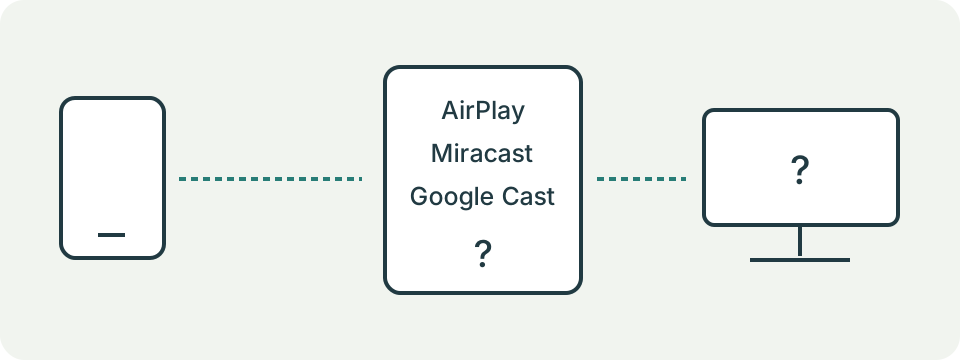
AirPlay offers native screen mirroring from supported Apple sources. Google Cast from an iPhone uses a Cast-enabled app, not a promise of native full-screen mirroring. Windows Miracast requires source and receiver support and can use Wi-Fi Direct; the same local-network rule is not universal. Android features vary by model.
Worked Example
An iPhone and a confirmed Google Cast receiver are selected, but the receiver is not listed. Check discovery in a Cast-enabled app and its local-network permission. The iPhone’s AirPlay mirroring list does not list every Google Cast receiver.
Identify the Connection Before Changing Settings
Start with the exact source and receiver models. A television described as smart does not automatically support every screen-sharing method. AirPlay, Miracast and Google Cast are different protocols. An app's Cast button can send supported content without reproducing the phone's entire screen. Record which task you need: a presentation, a whole desktop, an app video or audio. Then check that task in the documentation for both devices.
The four fields record source platform, intended protocol, documented receiver support and the observed symptom. They do not read device specifications or search your network. Unknown is a useful answer until documentation or an actual attempt supplies evidence. Choose no receiver support only when the exact model's documentation establishes it. A missing device in a selection list alone does not establish that its hardware lacks the feature.
Match the Source and Receiving Method
For built-in iPhone or iPad screen mirroring, look for an AirPlay-compatible receiving path. A receiver that supports only Miracast is a different setup. Google Cast-enabled iOS apps can offer their own content controls; that does not make the phone a native Miracast source. Android also needs model-specific checking. A menu named Cast or Wireless display does not establish the same protocol on every manufacturer's phone.
Windows wireless projection uses a supported Miracast path. Windows + K opens its display selection on an appropriate PC. Projecting to another Windows PC can require the receiving PC's documented Wireless Display feature and receiving app. This checklist does not install that feature, test graphics drivers or certify a particular PC. A platform-compatible recommendation means that the method deserves checking, not that every device in that platform supports it.
Check Discovery Without Confusing It with Internet Access
For ordinary home AirPlay and Google Cast setups, compare the source and receiver's local network, receiving settings and required discovery permissions. A guest network can restrict communication between clients. Working websites on both devices prove internet access, not discovery between them. Keep any network change within the network owner's documented configuration. Do not remove workplace restrictions or disable security software broadly to make a device appear.
Miracast needs its own model-specific instructions instead of a universal same-network rule. Keep the receiver's wireless-display mode enabled where required and follow its pairing procedure. The page does not inspect network names, permissions, radio bands or router settings. It cannot tell which discovery step failed. Record the actual setting you checked and the before-and-after observation, rather than treating a checklist heading as an automatic diagnosis.
Separate the Failed Stages
Choose not listed when the intended receiver never appears. Choose connection fails when it appears but the attempt stops. These answers preserve different evidence, although this tool gives the same protocol-specific preparation checks for both. It does not run a separate discovery probe or authenticate a session. Record an exact error and the point where it appears so the manufacturer's instructions can address that stage.
Choose black content when a connection opens but the intended content stays black. Compare an ordinary permitted screen or unprotected material through the same connection. Some apps restrict capture, mirroring or protected output. A working desktop with one black video is different from a receiver that never appears. That comparison does not identify the protection mechanism, prove an HDCP fault or promise that a different adapter can bypass the app's rules.
Read the Suggested Checks Accurately
An unknown source or protocol adds identification steps. Unknown or unsupported receiver support adds a documentation check. Confirmed unsupported receiver support prevents a protocol connection checklist from being presented as a compatibility fix. With a known platform and protocol, the page offers that protocol's checks or asks for a supported platform method. Black content adds a content comparison, and every route ends with an evidence record.
For example, select iPhone, Miracast, confirmed receiver support and receiver not listed. The result asks you to check the source platform's available method; the receiver's Miracast support does not supply native iPhone Miracast. Select a supported Windows/Miracast setup with black content and the guide includes both Miracast preparation and content checks. These are independently reproducible checklist examples, not reports of successful wireless measurements.
Keep a Useful Record for the Next Attempt
Use one supported change at a time: a documented receiving setting, relevant permission or normal restart. Keep the original setting and repeat with the same source, receiver and content. Record the models, software versions, protocol, failure stage and outcome. Changing the network, app and receiver together can hide the reason for an improvement. Do not publish pairing passwords or private screens as part of a support record.
The connection-path guide helps organize those observations. A wired display comparison needs a documented source port, cable and receiving input; a physical connector alone does not guarantee video output. Use the HDMI and DisplayPort calculator only to examine its stated bandwidth assumptions. Persistent mirroring failure still needs model-specific support. Reset on this page clears its selections, and the checklist button announces headings; neither control changes the devices.
What the Result Means
The page uses manual selections, not a compatibility database or a live connection test. Discovery, connection and content playback are separate stages. A black screen can be content-specific; check the app’s supported playback method. Do not infer a broken TV, supported resolution or permission state from this guide.
Common Questions
Must Every Mirroring Setup Use the Same Wi-Fi Network?
AirPlay and ordinary Google Cast instructions use the same network. Miracast can use Wi-Fi Direct, and supported infrastructure modes have different requirements.
Does a Cast Button Mean the Entire Phone Screen Is Mirrored?
No. Casting media from an app and mirroring a complete screen are different operations.