How to Use This Tool
- Enter the source width and height in whole pixels.
- Enter the target ratio width and height.
- Compare the largest retained crop and the percentage of source area removed.
Calculation Method
The exact source ratio divides width and height by their greatest common divisor. The largest crop uses a proportional rectangle with square pixels. Fractional dimensions describe geometry, not an encoder-ready export.
Worked Example
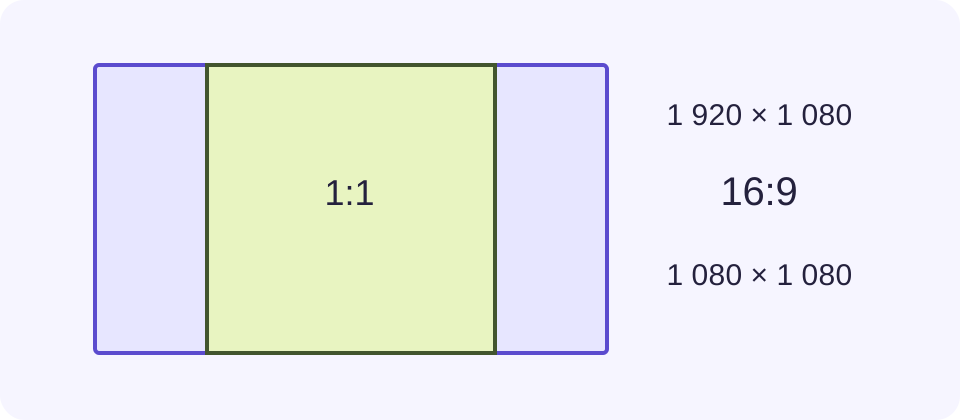
A 1920 × 1080 frame reduced to 16:9 needs a 1080 × 1080 crop to become square, removing 420 pixels from each side when centred.
Choose the Shape Before the Resolution
Aspect ratio describes shape, while resolution counts pixels. A 1280 × 720 recording and a 3840 × 2160 recording both reduce to 16:9. They can share a canvas shape without having equal detail. Enter the dimensions of the picture that will actually be used, after any intended rotation or earlier crop. A portrait recording displayed sideways needs that rotation resolved before its width and height make sense.
For ordinary square-pixel video, divide both dimensions by their greatest common divisor. The divisor for 1920 and 1080 is 120, leaving 16 and 9. A decimal such as 1.7778 helps compare shapes, but the ratio expresses the relationship without a rounded decimal.
Fit and Crop Answer Different Questions
Fit keeps the complete picture inside the target shape. Empty space remains along one pair of edges when the shapes differ. That space may become black bars, a solid background or a designed layout in an editor. Crop keeps a rectangle with the target shape inside the source, removing the surplus picture. Neither operation should stretch circles into ovals.
The calculation compares rectangles, not subjects. A centred crop can remove a face near an edge, captions at the bottom or a scoreboard beside the action. Review the whole clip before committing. A speaker who walks across a stage may need a moving crop or a different layout rather than one fixed rectangle.
Check a Square Crop Independently
Start with a 1920 × 1080 frame and choose 1:1. The largest square within it is 1080 × 1080. There are 840 surplus horizontal pixels, so a centred crop removes 420 on each side. The retained area is 1,166,400 divided by 2,073,600, or 56.25% of the original. This percentage measures area, not picture quality.
Keeping that complete source inside a square without scaling it instead requires a 1920 × 1920 canvas, leaving 420 pixels above and below. These two results solve different editing choices. Compare the picture region and canvas separately so a large padded output is not mistaken for additional captured detail.
| Pixel Dimensions | Reduced Ratio |
|---|---|
| 1920 × 1080 | 16:9 |
| 1080 × 1920 | 9:16 |
| 1080 × 1350 | 4:5 |
| 2560 × 1080 | 64:27 |
Allow for Whole Pixels at Export
A geometric answer can contain fractions. Cropping 1920 × 1080 to 9:16 while keeping the full height gives a width of 607.5 pixels. A video file cannot contain half a column of ordinary pixels. Your editor must choose a whole-pixel rectangle, and some encoder or colour-sampling settings also need even dimensions. Read the export size rather than assuming the displayed decimal can be typed unchanged.
Rounding can alter the ratio slightly. Work from the desired delivery canvas and check the final encoded dimensions. This calculator does not prescribe a particular codec, round a file into compliance or guarantee acceptance by a service. A platform’s current publishing documentation remains the source for upload constraints.
Use the Result in an Editing Workflow
Apply the planned shape in the editor, preview edge content and check the exported file. For older video with non-square pixels, pixel dimensions alone may differ from display aspect ratio. The square-pixel assumption here must be checked against the source settings. Do not infer bitrate, file size, sharpness or playback smoothness from the aspect ratio.
After the composition is settled, estimate storage using duration and actual audio/video bitrates. Changing 16:9 to 1:1 does not define a new bitrate by itself. A separate file-size calculation makes that assumption visible.
What the Result Means
This calculates dimensions only. It does not edit video, track a moving subject or verify platform rules. Non-square pixels, rotation metadata and export rounding need separate checks.
Common Questions
Does Choosing a Ratio Change My File?
No. Apply the planned crop, padding or resize in your editor.
Is 2560 × 1080 Exactly 21:9?
No. Its reduced pixel ratio is 64:27. The 21:9 label is often used broadly for ultrawide displays.