How to Use This Tool
- With the car parked, check the manufacturer’s documentation for the exact vehicle or stereo and its supported wired or wireless CarPlay method. Leave unconfirmed support unknown.
- Select the connection method, confirmed compatibility, whether CarPlay appears in the car’s menu and whether Siri is available. Use observations from the devices, not guesses.
- Follow the relevant connection and settings checks, then compare the result after one change. Keep the original setup and use the vehicle manufacturer’s instructions for firmware or pairing.
Calculation Method
Wired checks concern the supported USB data port and cable. Wireless checks concern Bluetooth, Wi-Fi and the car’s setup process. A visible CarPlay option and Siri availability guide further checks; neither proves a working connection. Review CarPlay restrictions in the relevant iOS settings.
Worked Example
The manufacturer confirms wired CarPlay, Siri is available, but no CarPlay option appears in the car’s menu. Check the manual’s USB port and menu instructions. A phone charging through USB does not establish a data connection or identify a faulty cable.
Record the Failed Stage While Parked
Use the guide with the vehicle parked. Note the vehicle model and year, original or replacement stereo, iPhone model and iOS version. Describe the stage that fails: the phone is not recognized, pairing stops, CarPlay never opens, or one app fails after CarPlay appears. Those observations need different follow-up checks. A music or navigation problem inside an already working CarPlay session is not automatically a failed connection.
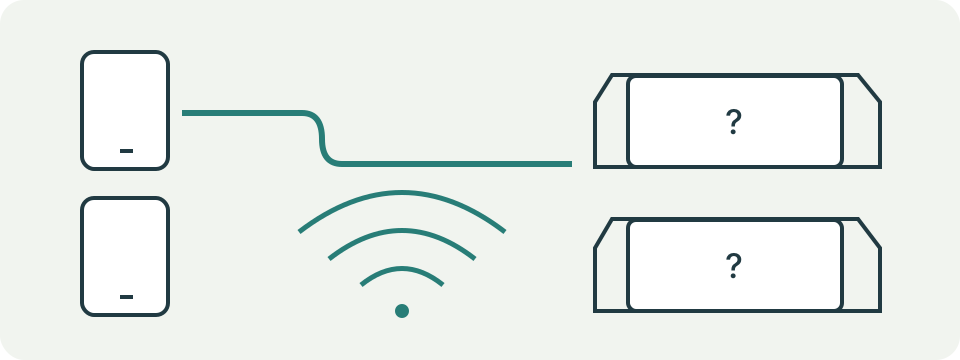
This page organizes your selections into manual checks. It does not connect to the stereo, inspect the car, read the phone or detect compatibility. Four fields ask about connection type, documented support, the CarPlay menu and Siri. Keep unobserved answers unknown. The diagram shows alternative paths, not a successful live session or an installation recommendation for a particular car.
Confirm Support for the Exact Setup
Check the vehicle or stereo manufacturer's documentation for the exact model and connection type. A model family name alone may omit relevant equipment differences. Record whether the documented method is wired, wireless or both. Ordinary Bluetooth calls and audio do not establish wireless CarPlay support. A charging socket does not establish a CarPlay data port. An aftermarket adapter adds another product with its own requirements.
Apple's guidance also asks for supported regional availability and current iPhone software. Use its current links rather than copying an old country list. This tool has no vehicle database that verifies your selection. Choosing no documented support produces support and evidence checks instead of offering cable or pairing changes as a way to create an unsupported feature. Unknown support still requires confirmation before a purchase or reset.
Trace a Wired Connection as a Data Path
For a documented wired setup, start with the vehicle's supported CarPlay USB port and a suitable data cable. A phone charging proves power delivery, not successful data communication. Note the exact port and cable used. Compare another available supported cable while keeping the phone and port unchanged; then compare a documented alternative port separately. Changing both together leaves the reason for any improvement uncertain.
Apple notes that some adapter, cable and entertainment-system combinations can disrupt the wired connection. Where the documented setup allows it, compare a direct supported cable rather than adding more adapters. Do not force a connector or disturb a busy connection to inspect it. Record any disconnect message and whether it occurs before or after the CarPlay display appears. A cable comparison cannot by itself certify a damaged port or phone.
Separate Wireless Pairing from Bluetooth Audio
For documented wireless CarPlay, follow the vehicle's pairing instructions with Bluetooth and Wi-Fi enabled on the iPhone. Apple's support guidance includes the saved CarPlay network's Auto-Join setting where it appears. A Bluetooth audio connection alone is not the entire CarPlay setup. Note whether the car finds the phone, requests pairing, accepts it and then opens CarPlay; each is a separate observation.
Keep the same phone and vehicle while checking one supported setting. A wireless adapter's pairing procedure may differ from the vehicle's built-in wireless method, so record that distinction instead of mixing their instructions. This browser page does not scan nearby devices, list CarPlay networks or measure signal strength. An unsuccessful wireless attempt does not prove that Bluetooth hardware, Wi-Fi hardware or the stereo is faulty.
Check the Menu and Phone Settings Deliberately
When CarPlay does not open automatically, Apple's guidance asks you to select its entry on the vehicle display. Use the manufacturer's actual menu rather than assuming every stereo uses the same button. Review the correct saved vehicle in the iPhone's CarPlay settings. The menu field in this guide records whether you saw that entry; it does not establish that a session has connected or that every app works.
Apple also asks for Siri to be enabled and CarPlay not to be restricted. Setting names can vary with iOS, including the Siri section. Follow current Apple guidance and the restrictions applicable to the phone. The Siri field can add a relevant check, but selecting yes does not prove all related permissions are correct. Do not remove a managed restriction or guess a screen path from an invented screenshot.
Keep Changes Reversible and Specific
A normal restart, a documented software update or setting change may help an actual setup. Record the original state and repeat the parked connection after one change. Consult the car manual for stereo firmware and restart procedures. A generic button-hold instruction from another vehicle can be inappropriate. This page does not prescribe a firmware file, perform an update or reset the phone's network settings.
Apple's official troubleshooting includes forgetting the saved car and setting it up again. Understand that this removes that saved association, and keep the necessary supported setup information before using the procedure. It is a later manual check, not something the tool does for you. Avoid a full settings reset as an unexplained shortcut. A successful retry records one observed improvement rather than guaranteeing that a recurring failure is solved.
Use the Checklist and Evidence Together
The guide always includes setup scope and an evidence record. A documented unsupported setup stops at support and evidence. A known connection type adds its wired or wireless checks, while disabled Siri and a missing menu can add their own groups. Unknown observations remain unknown. Changing a selection updates the displayed list; the button announces the suggested headings for assistive technology. Reset clears selections, not vehicle settings.
Keep the exact error, failed stage, connection method and comparisons together for Apple, vehicle or stereo support. Distinguish an app-specific sound problem from the transport failing entirely. The connection-path guide helps document the route, and the phone-sound guide organizes call, alarm and media observations separately. Neither follow-up confirms hardware compatibility or repairs a car. Persistent problems still need model-specific support with the evidence actually collected.
What the Result Means
Support varies by vehicle, stereo, region and software. Wired support does not establish wireless support. Unknown answers stay unknown. This page cannot read settings, identify failed hardware or guarantee a pairing fix. Model-specific resets and firmware changes need official instructions.
Common Questions
Does Bluetooth Pairing Prove Wireless CarPlay Is Supported?
No. Ordinary Bluetooth audio and wireless CarPlay are different capabilities. Confirm wireless CarPlay with the manufacturer.
Must I Replace the Cable When the Phone Charges but CarPlay Fails?
Charging alone does not identify the cause. Compare a known suitable data cable and the documented CarPlay USB port before drawing a conclusion.